

Key Takeaways
- Most productivity features on smartphones are built in and free to use.
- Calendars, reminders, and voice assistants work across both Android and iOS without extra apps.
- Managing notifications is one of the fastest ways to reclaim focused time.
- Cloud sync lets your notes and documents move between your phone and other devices automatically.
- A periodic audit of your apps and settings keeps your phone working for you, not against you.
Why your phone is already a capable productivity device
Most people use their smartphones for calls, messages, and social media. The same device, though, ships with tools that can handle scheduling, document editing, voice dictation, and focused work sessions without downloading anything extra.
The gap between owning a productive phone and using one comes down to awareness. Once you know what is already there, you can decide which features actually fit your habits. For a ground-level orientation to the device itself, this beginner-friendly guide walks through setup and essential settings. The sections below focus on what to do once you are up and running.
Task and calendar management
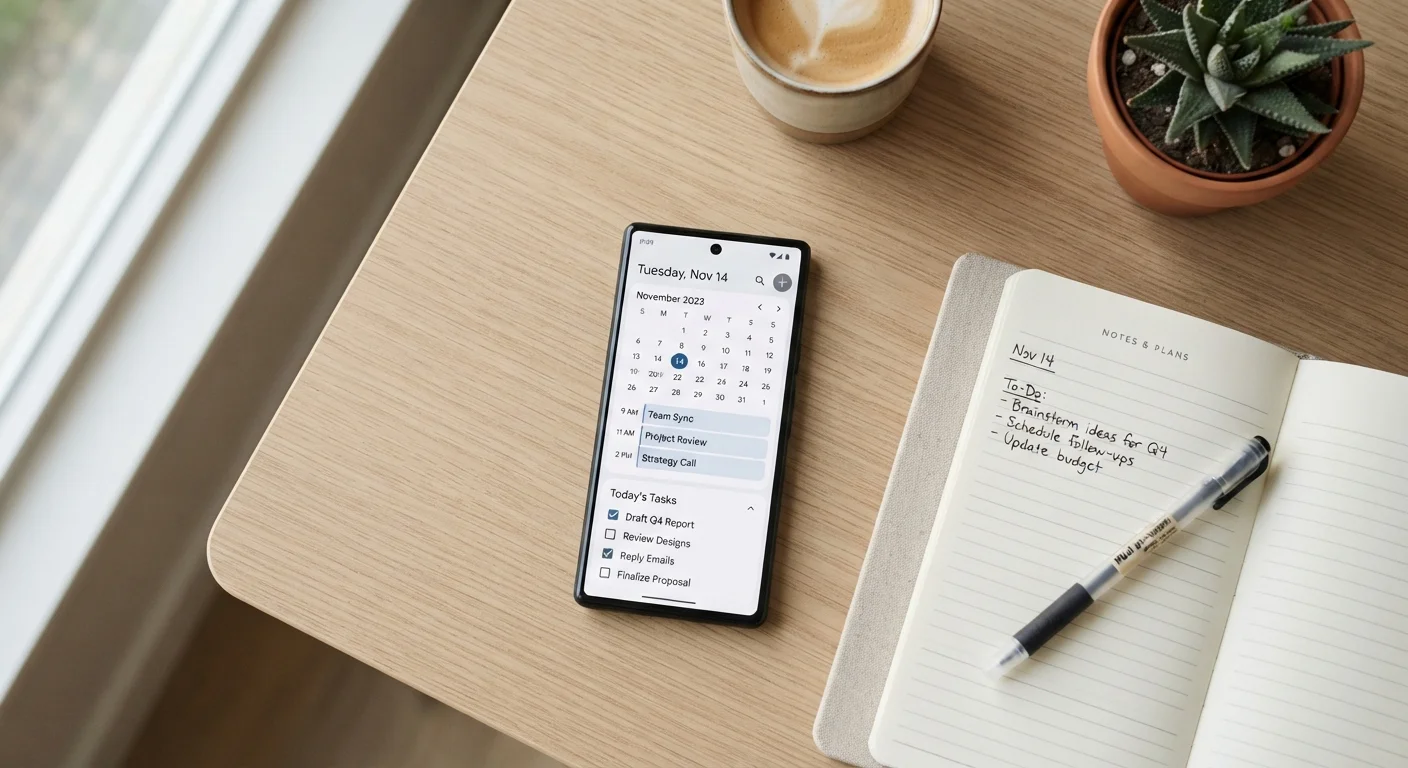
Both Android and iOS include a calendar app that syncs with any Google or Apple account. Adding events takes about ten seconds, and you can set multiple reminders per event so nothing slips. The Reminders app on iOS and Google Tasks on Android let you create simple to-do lists that sync across your devices automatically.
Voice input speeds this up considerably. Asking your phone's built-in assistant to "add a dentist appointment Thursday at 2 p.m." creates the calendar entry without typing. The same assistant can set a timer, read back your schedule for the day, or send a quick reply to a message while your hands are occupied.
Android and iOS handle these tasks slightly differently, particularly around how calendar data syncs and which assistant is built in. If you switch between platforms or share events with family members, it is worth checking that your calendar accounts are connected properly in Settings.
Use recurring reminders for routine tasks
Both Android and iOS let you set reminders that repeat daily, weekly, or on custom schedules. Setting a recurring reminder for routine tasks like weekly planning or paying bills means you only have to create the reminder once.
Communication tools that save time
Email, messaging, and video calls all live on the same device. The time savings come from setting each one up thoughtfully rather than leaving defaults in place.
For email, turning off badge counts for low-priority accounts stops the reflex to check constantly. Scheduling a few fixed times to read and respond is more efficient than reacting to every notification as it arrives. Both major platforms let you set per-app notification behavior in Settings under Notifications.
Group messaging apps that most workplaces use, such as messaging platforms built around channels or threads, have mobile versions that mirror the desktop experience almost completely. If your job involves document approvals or quick sign-offs, many of those workflows are accessible from a phone without needing a laptop.
Auditing your notification settings across all communication apps is the single change that tends to produce the most immediate improvement in focus.
Note-taking and document handling
The built-in notes app on any modern smartphone supports text, photos, checklists, and voice memos. Notes sync to the cloud automatically when you are connected to Wi-Fi or mobile data, so a note captured on your phone appears on your computer without any manual transfer.
For longer documents, cloud-based office suites have mobile apps that allow real editing, not just viewing. You can review a spreadsheet, leave a comment in a shared document, or make a quick text fix while away from a desk. The mobile experience works best for reviewing and light editing; complex formatting or large tables are still easier to handle on a larger screen. Screen size affects how comfortable this kind of work feels, so your comfort level may vary.
Whether to use a browser or a dedicated app for a service like a document suite depends on your device storage and how often you use that service. For tools you open daily, the app is usually faster.
Focus and attention management
Screen time and digital wellbeing features are built into both platforms. They track how long you spend in each app and let you set daily limits. Understanding what those tools actually measure helps you interpret the data rather than just feel guilty about it.
Do Not Disturb mode silences calls, alerts, and notifications on a schedule you define. You can allow calls from specific contacts to break through during those quiet periods. Focus modes on iOS and similar settings on Android let you go further, restricting which apps can send alerts depending on what you are doing, such as working, sleeping, or driving.
Do Not Disturb does not block everything
Alarms you have set will still go off during Do Not Disturb, and emergency alerts from your carrier may bypass it depending on your settings. Check your device's specific behavior in Settings under Notifications or Focus to avoid surprises.
Accessibility features, often overlooked, can speed up daily use for anyone. Text-to-speech, display zoom, and back-tap shortcuts (on supported devices) reduce the number of steps to reach common functions. A guide to built-in accessibility features covers what is available and where to find it.
Keeping your setup useful over time
A phone loaded with unused apps, full storage, and outdated software becomes slower and less reliable. A periodic check takes about fifteen minutes and makes a noticeable difference. Delete apps you have not opened in months, clear cached data in apps that have grown large, and confirm that automatic software updates are turned on.
A guided digital clutter audit gives you a checklist format for this process if you prefer a structured approach. For broader maintenance habits, practical phone maintenance guidance covers storage, charging, and software update routines in more detail.
The Digital Tools hub has additional articles on apps and online services that fit into daily routines without adding complexity.