

Key Takeaways
- Most apps request notification permission by default, but you control which ones actually get through.
- Both Android and iOS let you silence notifications per app, per category, or across your whole device.
- Scheduled delivery and focus modes batch alerts so they interrupt you less throughout the day.
- Auditing notifications takes under an hour and has a lasting effect on daily focus.
- You do not need a third-party app to manage notifications well on a modern smartphone.
What you will need
Why notification volume keeps climbing
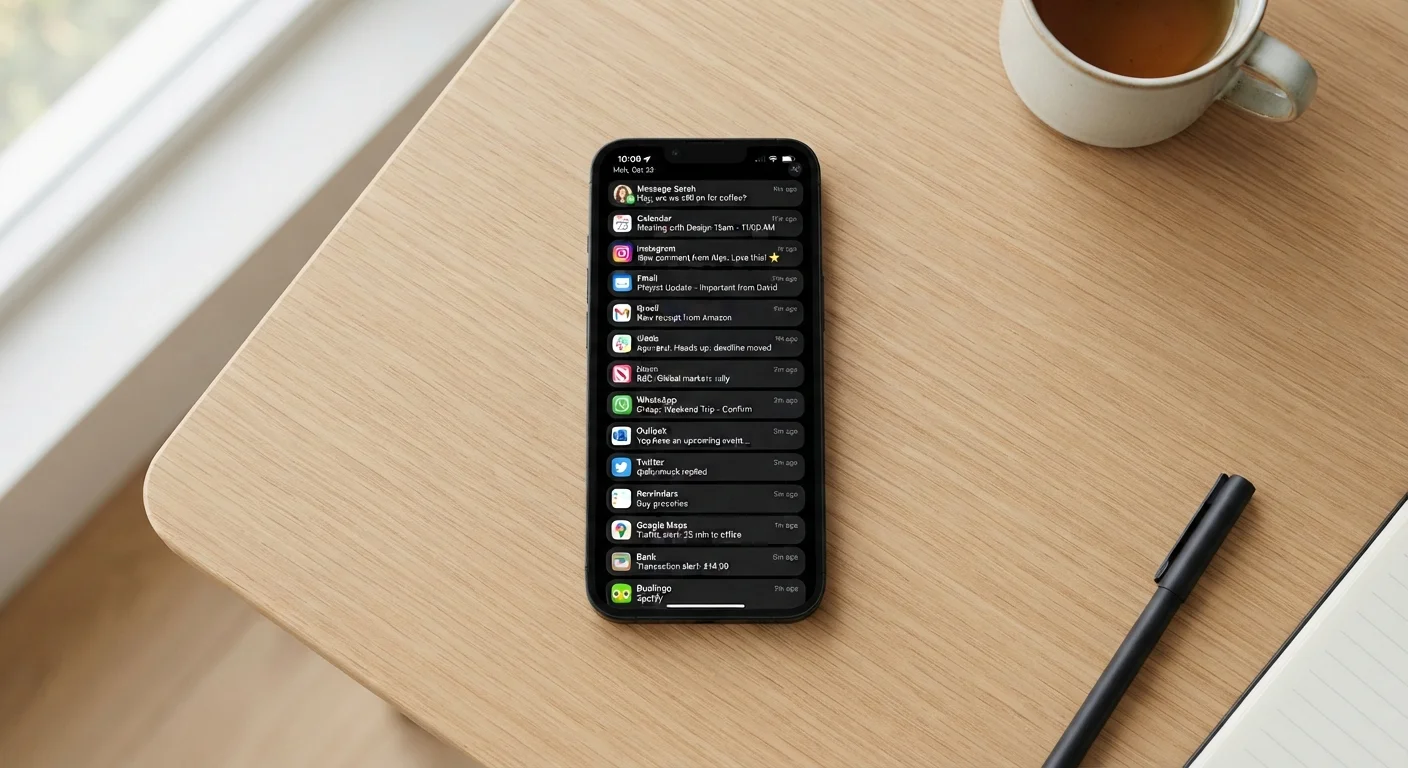
Every app you install treats its notification permission as a direct line to your attention. That permission defaults to on in many cases, which means a phone with 40 apps installed can realistically generate hundreds of interruptions per day before you have made a single deliberate choice about what should reach you.
The effect is not trivial. Interruptions fragment concentration, and the habit of checking your phone after every buzz conditions you to reach for it even when it stays silent. The good news is that both Android and iOS give you enough control to fix this without losing the alerts that actually matter, such as calls, text messages from people you care about, or time-sensitive reminders.
For a broader look at how the two platforms handle this kind of control differently, see how Android and iOS handle everyday tasks.
Settings app (built-in)
The primary place to review and change notification permissions for every app on your device.
Focus mode (iOS) or Focus modes (Android)
Lets you create rules that filter which notifications reach you during specific activities or times.
Digital Wellbeing (Android) or Screen Time (iOS)
Shows how often you pick up your phone and which apps send the most alerts, helping you prioritize what to silence first.
Step-by-step: taking control of your alerts
Open your notification settings and see the full picture
On Android: go to Settings, then Apps (or App Management on some versions). Tap the three-dot menu or look for a "See all apps" option. From there, tap any app and choose Notifications to see what that app is allowed to send.
On iOS: go to Settings, then Notifications. You will see every installed app listed, along with whether notifications are on or off for each one.
Before changing anything, scroll the full list. Most people find several apps with notifications turned on that they forgot they installed.
Turn off notifications for apps that do not need them
For most apps, the question is simple: does this app ever need to interrupt you in real time? Games, shopping apps, and social media platforms rarely do. News apps may send dozens of alerts a day for stories you will read whenever you choose to open the app anyway.
On both Android and iOS, tap into each app's notification settings and toggle notifications off entirely for any app that does not genuinely need your immediate attention.
A useful frame: if you would not answer a phone call from this app, turn its notifications off.
Use notification categories to allow only what matters within an app
Some apps you want to hear from selectively. A messaging app might have categories for direct messages, group chats, and promotional content. An email app might separate personal mail from newsletters.
On Android: inside an app's notification settings, you will usually see each category listed as a separate toggle. Turn off the ones you do not need while keeping the important ones active.
On iOS: the level of category control depends on whether the app developer built those options in. Check under Settings, then Notifications, then the app name. If categories appear, they will be listed there.
Switch from banners to scheduled summary delivery
Even necessary notifications do not always need to arrive the moment they are sent. Both platforms let you batch non-urgent alerts into a summary delivered once or twice a day.
On iOS: go to Settings, then Notifications, then Scheduled Summary. Turn it on, pick a delivery time, and add the apps you want included. Those apps will hold their alerts until the scheduled time instead of interrupting you throughout the day.
On Android: some manufacturers include a similar "notification batching" option. Look inside an app's notification settings for a "can be delayed" or low-priority option. Android also routes lower-priority notifications to a separate section at the bottom of the shade rather than popping them on screen.
Set up a Focus mode for your most distraction-prone periods
Focus modes let you define which contacts and apps can reach you during specific times or activities. You build a short allow-list, and everything else is silenced automatically.
On iOS: go to Settings, then Focus. You can use a preset (like Work or Sleep) or create a custom one. For each focus, choose which people and apps can notify you. You can also set it to turn on automatically at certain hours or when you open a specific app.
On Android: go to Settings, then Digital Wellbeing and Parental Controls, then Focus mode. Select the apps you want to pause during focus time. When the mode is active, those apps cannot send alerts and their icons are grayed out as a reminder.
Even a simple Do Not Disturb schedule, set to run overnight, reduces the reflex of checking your phone during hours when nothing urgent is likely to arrive.
Review your settings once a month
New apps reset to their default settings, which often means notifications are turned on. After installing anything new, check its notification permissions before you start using it regularly. A monthly pass through Settings, then Notifications takes about five minutes and prevents the list from creeping back toward its original cluttered state.
The digital clutter audit guide covers a broader checklist that pairs well with this review, including apps you may no longer use at all.
What to do if alerts still feel overwhelming
After completing the steps above, most people find the volume drops significantly within the first day. If interruptions still feel constant, the likely culprits are apps with multiple notification categories left on, or a messaging thread with high traffic. Revisit step 3 and look for categories you may have left active by default.
If you want your phone to work harder for you in other ways, the complete guide to using your smartphone as a productivity tool covers built-in features that pair well with a quieter notification setup. You can also check the guide to built-in accessibility features, which includes options like sound and vibration customization that can make remaining alerts easier to manage without adding more noise.
The goal is not to silence everything. It is to make the alerts that do arrive mean something, so you stop ignoring them out of habit.