

Key Takeaways
- Accessibility settings are built into every modern smartphone and cost nothing to use.
- Many features, such as larger text and display zoom, benefit users of all abilities.
- Both Android and iOS group accessibility tools in a dedicated Settings section.
- Voice control lets you operate your phone hands-free without any third-party app.
- Adjusting captions, sound balance, and touch sensitivity can meaningfully improve daily use.
Why accessibility features are worth your attention
Most people open their phone's accessibility menu once, see terms like "screen reader" or "switch access," and close it without changing anything. That is a missed opportunity. These tools were built for users with disabilities, but many of them solve problems that anyone encounters: squinting at small text in bright sunlight, struggling to hear a video in a noisy room, or accidentally tapping the wrong thing on a crowded screen.
Think of accessibility features as a layer of control that the standard phone experience does not expose by default. They let you shape how the phone sounds, looks, and responds to touch. Because they are built directly into the operating system, they work across nearly every app, not just the ones that choose to support them.
If you are curious about how Android and iOS compare more broadly, the side-by-side comparison of Android and iOS for everyday tasks covers how the two platforms handle core features differently.
Where to find accessibility settings on your phone
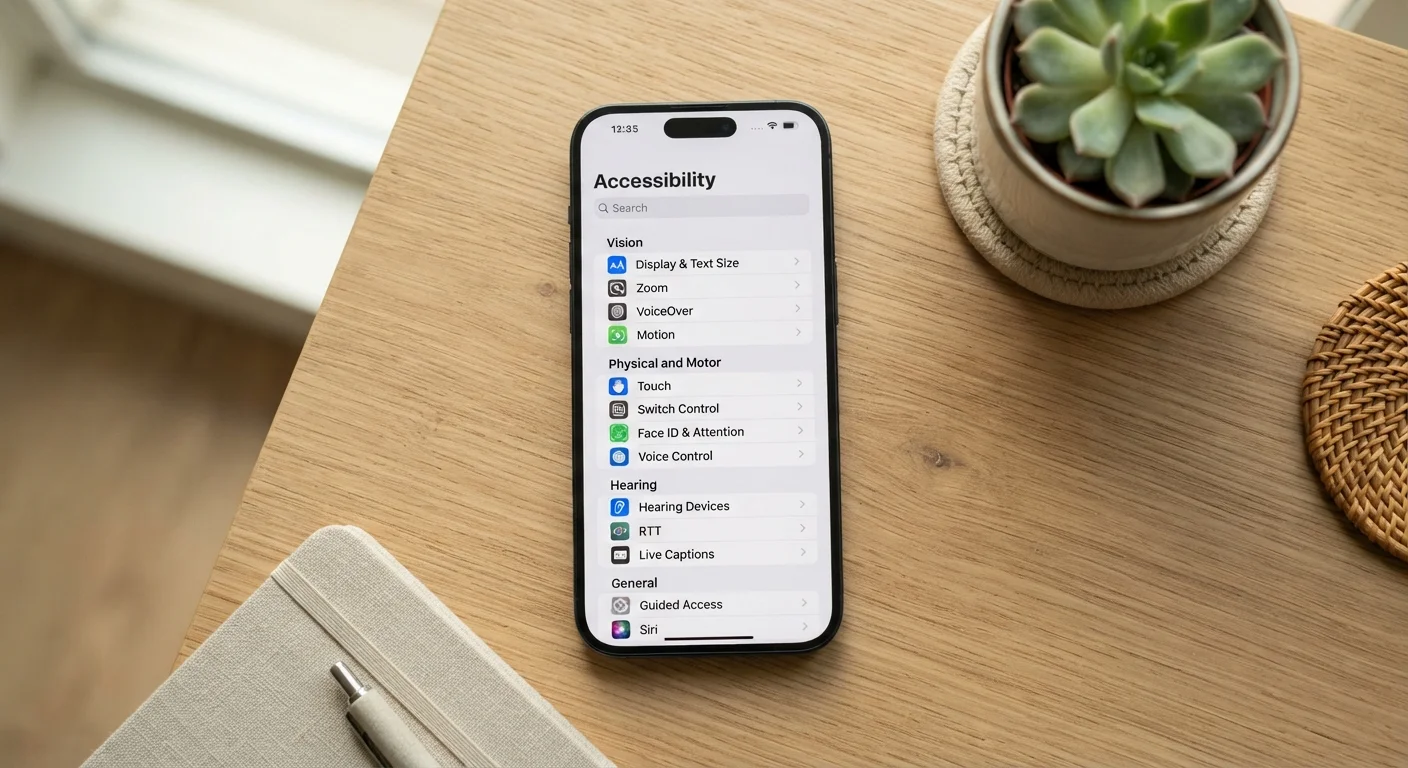
On an iPhone or iPad, open Settings, then tap Accessibility. The menu is organized into three groups: Vision, Physical and Motor, and Hearing.
On Android, the path varies slightly by manufacturer. On most devices, go to Settings, scroll to Accessibility, and tap it. Some Samsung phones place it under General Management first. If you cannot find it, type "accessibility" into the search bar at the top of Settings.
Both platforms also let you add an accessibility shortcut. On iPhone, go to Settings, Accessibility, then Accessibility Shortcut at the bottom: you can assign features to activate with a triple-click of the side button. On Android, look for "Accessibility Menu Shortcut" or "Volume Key Shortcut" inside the Accessibility section. These shortcuts mean you do not have to dig through menus every time.
Use the search bar to find any setting fast
Both iPhone and Android let you search inside the Settings app. If you are not sure where a specific accessibility option lives, type its name directly into the search bar at the top of Settings and it will appear immediately. This saves time on phones where manufacturers have rearranged the default menu layout.
Vision and display tools
Text size and display zoom. Both iOS and Android let you increase the size of text system-wide. On iPhone, go to Accessibility, then Display and Text Size, and drag the text size slider. Android has an equivalent under Accessibility, then Text and Display. Display Zoom (iOS) or Display Size (Android) scales up everything on screen, not just text.
Bold text and contrast. Turning on Bold Text makes type easier to read at any size. Both platforms also offer a "Reduce Transparency" or "High Contrast Text" option that makes backgrounds more solid, which helps when lighting conditions are poor.
Color filters and inversion. Color filters help users with color blindness distinguish between reds and greens or other commonly confused hues. Smart Invert on iOS flips most colors to a dark theme without inverting photos. Android's Color Inversion is similar. Dark mode, available system-wide on both platforms, is a lighter version of the same idea and reduces eye strain in low-light settings.
Zoom magnifier. iPhone's Zoom feature lets you double-tap with three fingers to magnify any part of the screen. Android offers a similar Magnification tool. Both are useful for reading small print in photos or dense tables in documents.
Hearing and sound adjustments
Captions and subtitles. iOS includes a Live Captions feature that transcribes speech in real time, including phone calls and videos. Android offers Live Transcribe and Live Caption, which work similarly. These work without an internet connection in many cases, and they can make a real difference when you are watching a video without headphones in a public space.
Mono audio and sound balance. If you use only one earbud, or if hearing differs between your ears, Mono Audio combines both stereo channels into one. The Left/Right audio balance slider lets you shift sound toward whichever ear hears better. Both controls are in the Accessibility or Sound section depending on your platform.
Flash alerts and haptics. Both platforms can flash the camera LED or screen when the phone receives a notification. On iPhone, this is under Accessibility, then Audio and Visual. On Android, look for Flash Notification inside Accessibility. This is a practical option when your phone is on silent in a meeting.
Touch, motion, and interaction controls
Touch accommodations. If accidental taps are a problem, both platforms offer settings that require a tap to be held for a minimum duration before it registers. iOS calls this Touch Accommodations under Accessibility, then Touch. Android has a similar option called Touch and Hold Delay.
Reduce Motion. The animations that play when you open and close apps can trigger dizziness for some people. iOS's Reduce Motion setting (Accessibility, then Motion) replaces most animations with simpler fades. Android's equivalent is under Developer Options or Accessibility, though the path depends on the phone model.
Reachability. On iPhones without a Home button, a downward swipe on the bottom edge of the screen pulls the top half of the display within thumb reach. This is under Accessibility, then Touch, then Reachability. It is practical for one-handed use on larger phones. For more on how screen size affects everyday use, see an honest look at the trade-offs between smaller and larger smartphone screens.
Voice control and spoken assistance
Voice Control (iOS) and Voice Access (Android) let you navigate your phone entirely by speaking. You can say the name of a button, a number overlaid on the screen, or a direction like "scroll down," and the phone responds. Neither feature requires a data connection to function after the initial setup.
Screen readers. VoiceOver on iPhone and TalkBack on Android read out everything on screen: app names, button labels, notifications, and typed text. These are built primarily for users with low or no vision, but they also help in situations where you cannot look at the screen, such as while cooking or driving.
Siri and Google Assistant. Both voice assistants can set timers, send messages, make calls, and control settings without you touching the screen. They are not formally part of the Accessibility menu, but they overlap significantly with hands-free use. You can also use them alongside the phone's broader productivity features to manage tasks more efficiently.
Quick ways to get started today
If you have never adjusted these settings, three changes are worth trying immediately. First, increase your text size by one or two steps. Second, turn on system-wide captions if you watch any video on your phone. Third, enable an accessibility shortcut so you can reach your most-used feature in two taps.
From there, explore at your own pace. No setting in the Accessibility menu will break your phone, and every change can be undone. The privacy settings guide is a good companion read, since some accessibility features interact with microphone and camera permissions. For a fuller picture of app-level permissions, the guide to app permissions explains what each type of access actually means.
Accessibility settings do not require any technical background to use. They are a standard part of your phone, already paid for, and available the moment you open Settings.