

Key Takeaways
- Each permission type covers a specific resource; granting one does not grant others.
- You can change or revoke permissions at any time through your phone's settings.
- A mismatch between an app's purpose and the permissions it requests is worth questioning.
- Both Android and iOS let you grant partial access, such as location 'only while using the app'.
- Reviewing permissions periodically is a practical way to limit unnecessary data exposure.
App permissions
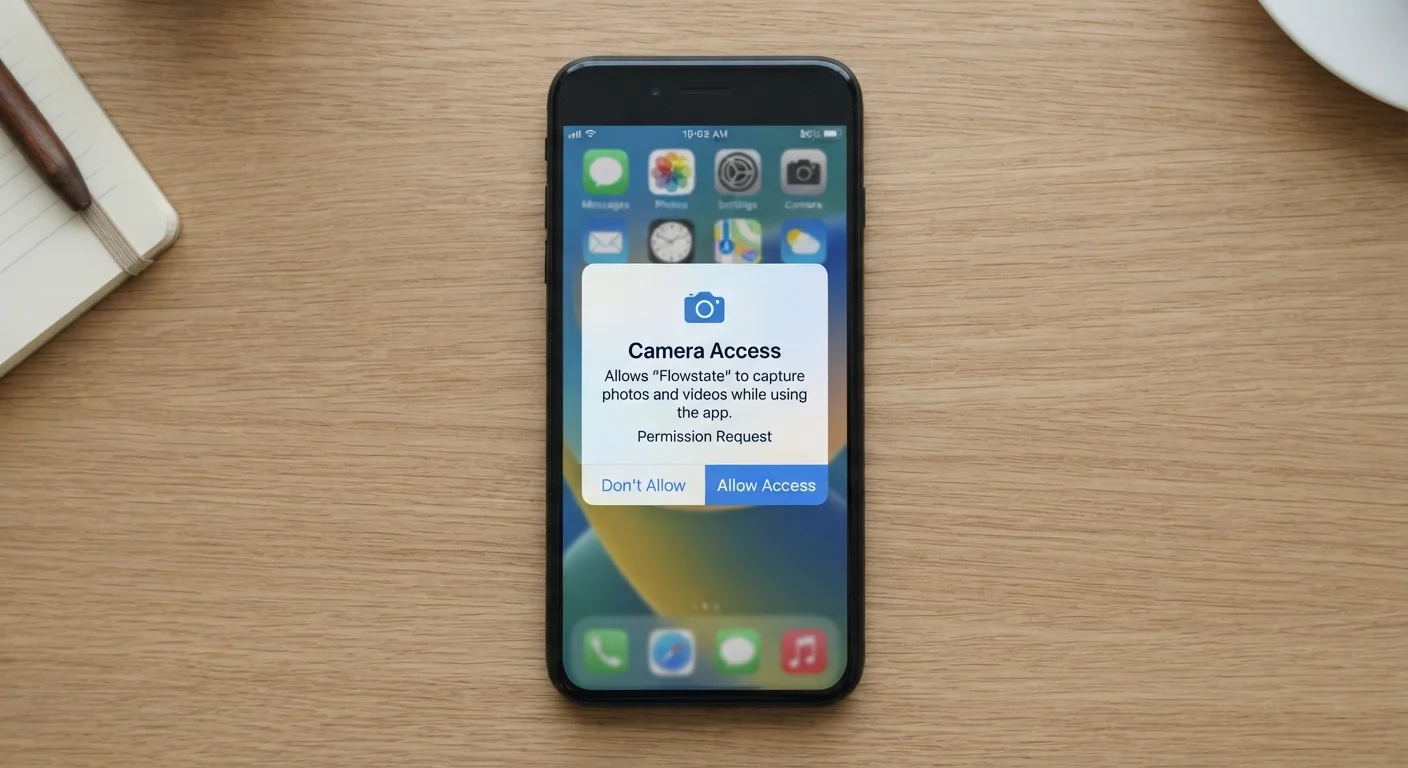
App permissions are requests an app makes to access specific features or data on your phone, such as your camera, contacts, or location. The operating system (iOS or Android) presents these as pop-up prompts before granting access. You control whether each request is approved or denied.
Permissions are enforced at the OS level through a sandboxing model, meaning an app cannot access a protected resource unless the user explicitly grants it and the OS validates the grant.
What permissions actually control
When an app asks to 'access your location' or 'use your microphone,' it is requesting a specific, bounded capability. Your phone's operating system acts as a gatekeeper: the app cannot reach that resource until you respond to the prompt, and even after you allow it, the OS logs and enforces the boundary.
Common permission categories and what they cover:
- Location: Your physical coordinates, drawn from GPS, Wi-Fi triangulation, or cell towers. Most platforms let you choose 'always,' 'only while using the app,' or 'never.'
- Camera: The ability to open your phone's camera and capture images or video in real time.
- Microphone: Live audio input from your device. A voice assistant or video call app needs this; a static recipe app generally does not.
- Contacts: The names, phone numbers, and email addresses stored in your address book.
- Photos and media: Access to images and files you have saved. Some platforms let you grant access to specific photos rather than your whole library.
- Notifications: The ability to send alerts to your screen, lock screen, and notification tray.
- Bluetooth and nearby devices: Used for pairing with speakers, wearables, or other phones. Some apps use Bluetooth for location tracking even without GPS.
See what common permissions actually access on your phone for a more detailed breakdown of each category.
When a permission request makes sense
A useful test: does this permission directly support the thing the app is supposed to do? A mapping app needs location. A video chat app needs the camera and microphone. A food delivery app reasonably needs location to show nearby restaurants and route a driver to your address.
The request becomes harder to justify when the permission has no clear connection to the app's function. A flashlight app that asks for your contacts, or a simple game that wants microphone access, deserves a second look. Denying the permission and seeing whether the app still works is a low-risk way to test whether the access was genuinely required.
Check permissions after app updates
App updates can introduce new permission requests that were not part of the original install. After a significant update, revisit the app's permission list in your phone's settings to see if anything new was added.
Android and iOS handle partial permissions differently. A side-by-side look at how Android and iOS handle everyday tasks covers how each platform presents and enforces these controls.
How to review and change permissions
You do not have to decide permanently at the first prompt. Both major mobile operating systems let you change any permission after the fact.
On an iPhone, go to Settings, then scroll to the app name (or go to Privacy and Security to browse by permission type). On Android, open Settings, then Apps, select the app, and tap Permissions. You will see every permission the app has requested and its current status.
A few habits that make permission management easier:
- After installing a new app, wait until you have used it once before deciding on each permission; that way you have context for whether the request makes sense.
- Check permissions for apps you installed months or years ago. An app may have added new permission requests through an update without you noticing. What app updates are actually changing explains what changes between versions.
- If an app stops working after you deny a permission, the OS will usually tell you which permission is needed. You can then decide whether to grant it or find an alternative.
Your phone's privacy settings also include broader controls, such as limiting ad tracking and managing which apps can see your clipboard.
Permissions that warrant extra attention
Location and contacts are two permissions worth thinking about carefully, because the data they expose extends beyond just you.
Granting contacts access means an app can read information about every person in your address book, not just your own details. Some apps use this to suggest connections or auto-fill recipient fields; others use it to build social graphs. If an app does not have an obvious social or communication function, contacts access has limited justification.
Precise location (down to a few meters) is different from approximate location (a general area). iOS and Android both let you share only approximate location for apps that do not need to know your exact address. Choosing approximate location for a weather app, for example, still gives it what it needs without pinpointing your home.
Background location, which lets an app read your coordinates even when you are not using it, warrants the most scrutiny. A navigation app may need this; most other apps do not. Restricting location to 'only while using the app' covers the majority of use cases without a meaningful loss of functionality.
For a broader look at phone features you may not have explored yet, see your phone's built-in tools.