

Key Takeaways
- Most smartphones grant app permissions broadly by default; reviewing them takes only a few minutes.
- Location access is one of the most frequently over-shared data types on modern phones.
- Both Android and iOS let you audit and limit permissions without uninstalling any apps.
- A few settings changes can significantly reduce how much data your phone shares with third parties.
- You do not need technical expertise to work through these settings on your own.
Summary
18 items · 20 to 45 minutes
Why your default privacy settings may not reflect your preferences
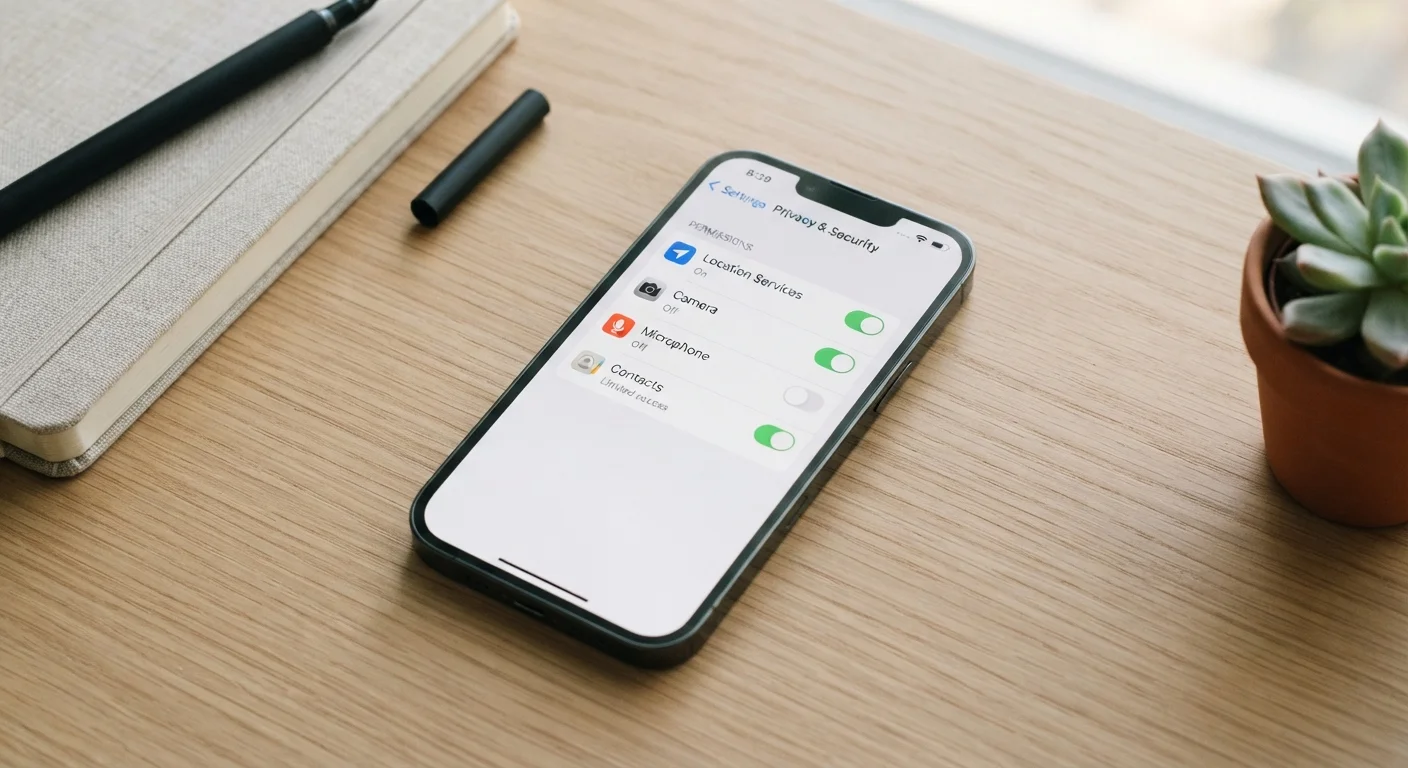
When you set up a new smartphone, most privacy-related settings default to the broadest access level. That is not necessarily malicious design, but it does mean the phone is optimized for convenience rather than for limiting data sharing. Apps can quietly collect location history, contacts, microphone access, and browsing habits in the background unless you change those defaults.
This checklist walks through the settings that have the most practical impact on your privacy. You do not need to adjust every toggle; the goal is to make deliberate choices rather than accept whatever the phone assumed for you.
For a deeper look at what specific apps are actually authorized to do when you tap "Allow," see the app permissions explained guide.
Location access
App permissions
Ad tracking and data sharing
Lock screen and biometrics
Browser and search privacy
Tools you will need
No third-party software is required. Everything in this checklist lives inside your phone's built-in settings app. The paths below reference the general menu structure common to most Android and iOS devices; the exact labels may vary slightly by manufacturer or operating system version.
Phone settings app
The built-in settings app is where every permission, location, and tracking control in this checklist lives.
Pen and paper or a notes app
Useful for jotting down which apps you changed so you can revisit if something stops working as expected.
Your phone's operating system version
Knowing whether you are on iOS or Android (and which version) helps you find the right menu paths; check under Settings > General > About.
What to pay close attention to
Revoking permissions can break app features
If you remove a permission an app actively uses, that feature will stop working. For example, removing microphone access from a voice-messaging app means voice messages will not record. Make changes one app at a time and test before moving on so you can trace any problems back to a specific change.
Privacy settings do not replace software updates
Adjusting permissions reduces data sharing but does not patch security vulnerabilities in outdated software. Keep your operating system and apps updated so that known security issues are addressed. Privacy and security work together, and this checklist covers only one part of the picture.
A few areas consistently catch people off guard. Location access is one: many apps request "always on" location when they only need it while open, or do not need it at all. Ad tracking identifiers are another. Both Android and iOS allow you to opt out of interest-based ad tracking through settings, which limits how advertisers link your activity across apps.
If you share your phone or link it to family accounts, some of these settings affect other people too. The guide to family account sharing covers what to think through before linking devices or accounts with others.
Security settings and privacy settings overlap in important ways. Locking down which apps can access your phone does not replace strong authentication. The two-factor authentication explainer is worth reading alongside this checklist.