

Key Takeaways
- Android allows more customization of the home screen, default apps, and system behavior than iOS does.
- iOS applies stricter app review standards, which limits what apps can do but reduces certain security risks.
- Both platforms have strong privacy controls, but they surface them differently in device settings.
- Switching between platforms requires migrating contacts, photos, and app data, which takes planning.
- Neither platform is objectively better; the right choice depends on how you actually use your phone.
Option A
Android
The flexible, customizable platform with broad hardware variety.
Best for: Users who want control over how their phone looks, behaves, and which apps it runs.
Option B
iOS
The tightly integrated platform built around simplicity and consistency.
Best for: Users who want a predictable, polished experience with minimal setup.
If you want to customize your phone's layout and default apps
Android
Android lets you set third-party apps as defaults for browsers, messaging, and email, and gives you more control over your home screen layout.
If you already use other Apple devices like a Mac or iPad
iOS
iOS connects tightly with Apple hardware through features like AirDrop, Handoff, and iCloud, making cross-device tasks genuinely smoother.
If privacy settings and transparency matter to you
iOS
iOS surfaces per-app permission controls prominently and shows clear indicators when the camera or microphone is active.
If you want flexibility in where you get your apps
Android
Android allows installation from sources outside its official store, giving access to a wider range of apps and services.
If you prefer long-term software support with minimal upkeep
iOS
Apple typically supports older iPhone models with software updates for five or more years, and updates roll out to all supported devices at once.
How each platform handles navigation and home screen setup
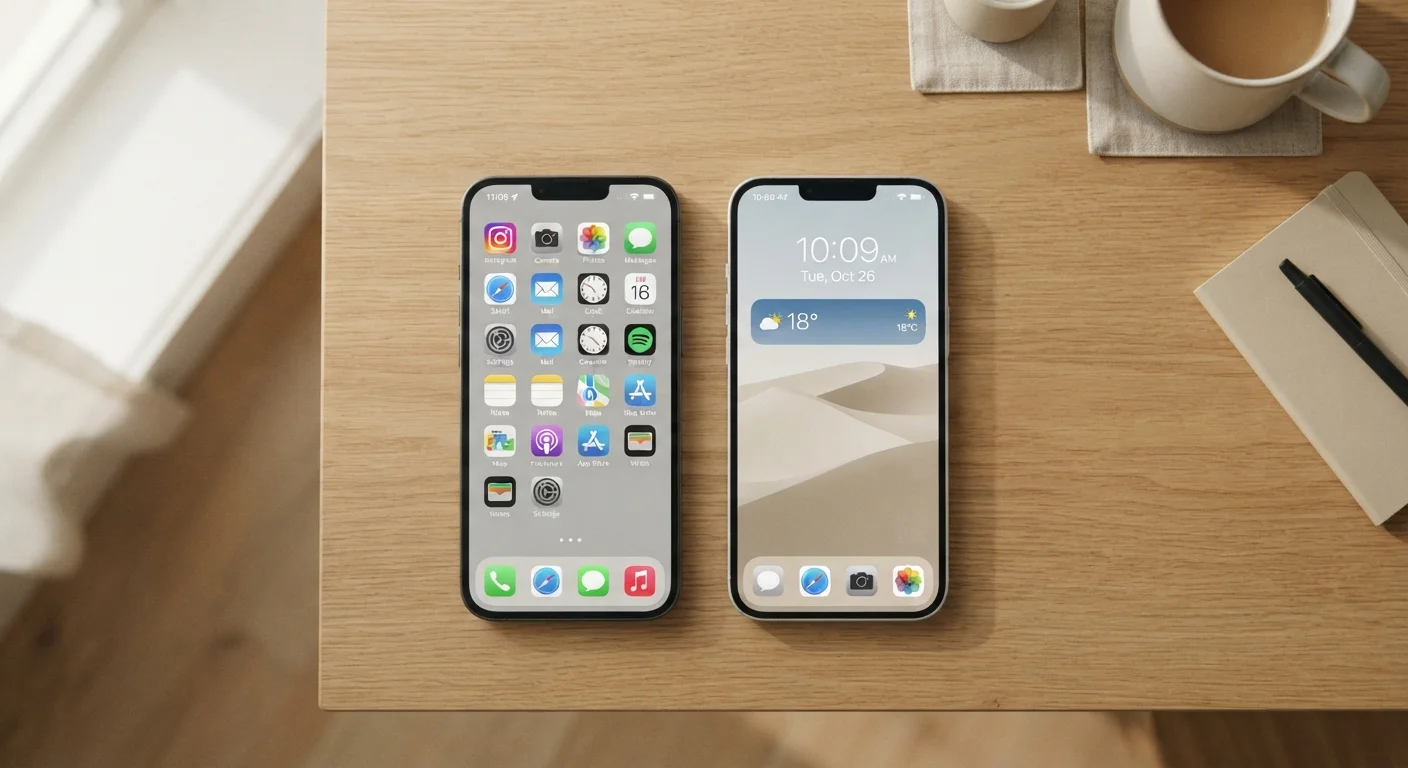
Android and iOS both get you from point A to point B, but they organize the phone differently from the start. Android puts apps directly on the home screen or in an app drawer (a separate list of everything installed), depending on the device. iOS puts all installed apps on the home screen by default, with an App Library folder that groups them automatically.
Android lets you replace the home screen launcher entirely with a third-party app, which changes how icons, widgets, and navigation gestures behave. iOS does not allow launcher replacement, though you can rearrange icons, create folders, and hide pages. Both platforms support widgets, but Android widgets have been available longer and generally offer more size options.
For navigation, most modern Android devices use gesture-based controls (swipe up to go home, swipe from the side to go back), though some still show on-screen buttons. iOS has used gesture navigation on all Face ID models since 2017, with swipes handling back, home, and app switching. The gestures differ enough that switching platforms takes a short adjustment period.
Privacy controls and app permissions
Both platforms give you per-app permission controls for things like location, microphone, camera, and contacts. The difference is mostly in how visible those controls are and what granularity they offer.
iOS shows a clear orange dot at the top of the screen whenever an app is using the microphone, and a green dot for the camera. It also lets you grant location access "only while using the app" for nearly every app that requests it. Android has had similar controls since Android 10, with approximate location sharing added in Android 12.
For a closer look at what those permission prompts actually mean in practice, see what app permissions grant on your phone. A more detailed breakdown by permission type is also in this guide to app permissions.
Android devices from different manufacturers sometimes add their own privacy dashboards on top of the base Android settings, which can either add useful features or create a more cluttered settings menu depending on the device.
| Criterion | Android | iOS |
|---|---|---|
| Home screen customization | High; launcher replacement allowed | Moderate; layout and folders only |
| Default app control | Set any app as default | Limited to select categories |
| App source flexibility | Sideloading allowed | Store only (most regions) |
| Privacy indicators | Dashboard in settings | On-screen dots plus dashboard |
| Software update timing | Varies by manufacturer | Same day for all supported devices |
| Cross-device sync | Google account, any device | iCloud, Apple devices preferred |
| Update support lifespan | Varies; often 3 to 4 years | Typically 5 or more years |
App availability and sideloading
The Google Play Store and Apple App Store each carry millions of apps, and the most widely used apps are available on both platforms. Differences show up in smaller categories: some apps launch on iOS first, others are Android-only or have more features on one platform.
Android allows sideloading, which means installing apps from outside the Google Play Store by enabling a setting and downloading an installation file directly. This gives access to apps not approved for the store, but it also removes the layer of review that store-approved apps go through. iOS does not allow sideloading on standard consumer devices in most regions, though regulatory changes in the European Union have begun to alter this for EU users.
For everyday tasks like deciding whether to use a browser or an app, the platform rarely changes the answer. Both support all major browsers and productivity apps well. Where platform choice matters more is in ecosystem lock-in: iCloud-based features like iMessage and FaceTime are iOS-only, while Google services like Google Photos and Google Drive work well on both.
Productivity, updates, and switching costs
Both platforms handle calendars, email, notes, and file management capably. The gap is mostly in how tightly built-in apps connect to the rest of the device. On iOS, Apple's first-party apps (Calendar, Notes, Reminders) sync across iPhone, iPad, and Mac through iCloud with little setup. On Android, Google's equivalents (Google Calendar, Keep, Tasks) sync across any device with a Google account, including Windows and Mac browsers.
For a broader look at what both platforms can do for daily productivity, the complete guide to using your smartphone as a productivity tool covers both platforms in detail.
Software updates work very differently. Apple pushes iOS updates to all supported devices on the same day, and support typically runs five or more years from a device's release. Android updates depend on the device manufacturer and carrier, so a given model may receive updates on a different schedule, or for a shorter period, than another Android device.
Switching from one platform to the other takes real effort. Contacts and photos can be migrated using official tools, but app purchases do not transfer, and platform-specific services (iMessage threads, Google Pay setup) require reconfiguration. Worth accounting for before you decide.