

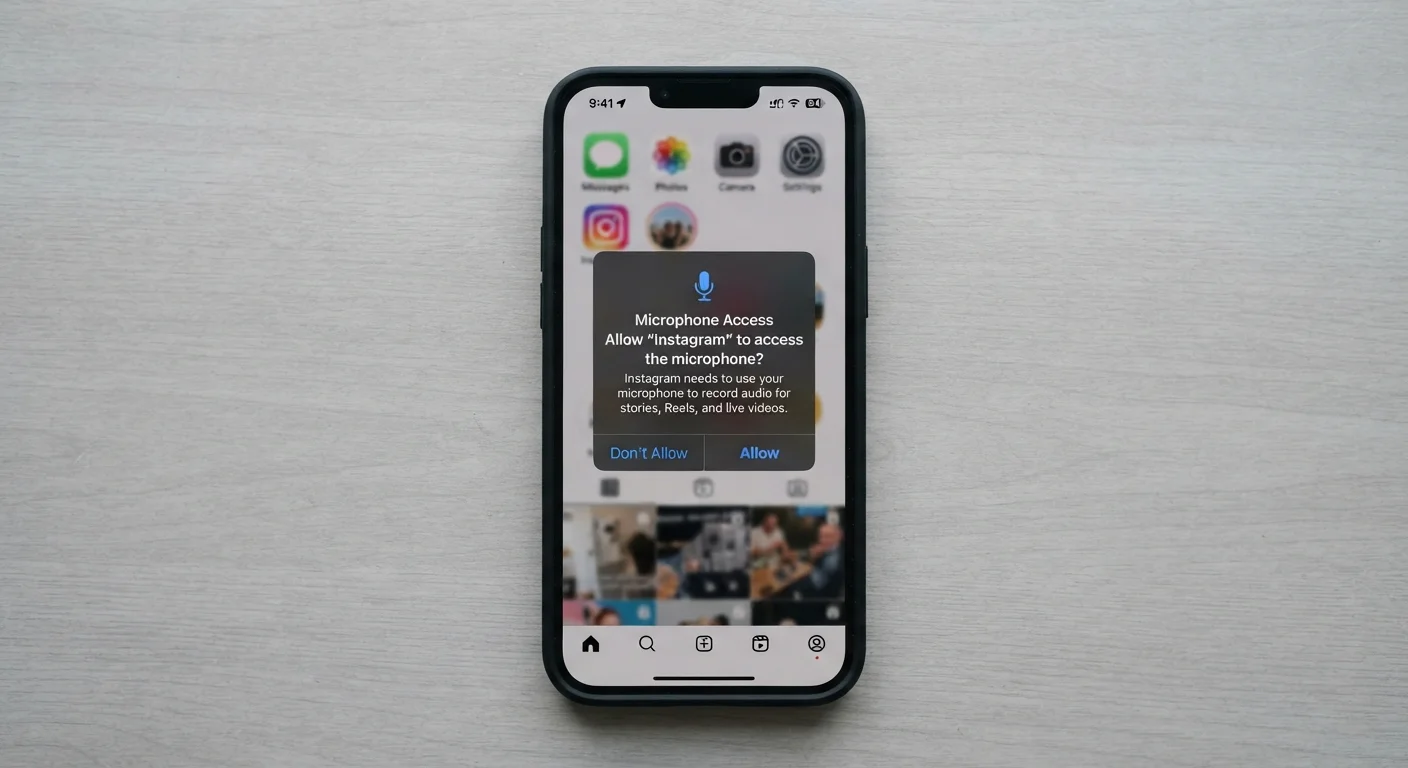
| Permission prompt control | Managed by the OS, not the app |
| Can permissions be revoked after granting? | Yes, at any time in Settings |
| Does revoking remove stored data? | No, only blocks future access |
| Location access options (iOS) | Never, Ask Next Time, While Using, Always |
| Location access options (Android) | Deny, Only while using the app, Ask every time, Allow all the time |
| Where to audit all permissions at once | Privacy settings > Permission Manager (Android) or Privacy & Security (iOS) |
What app permissions actually are
When an app asks to access your camera, location, or contacts, it is requesting a formal gate that your phone's operating system controls. iOS and Android both require apps to request permission before reaching certain data or hardware. Tapping "Allow" opens that gate. Tapping "Don't Allow" or "Deny" keeps it closed, and the app must work without that resource.
Permissions fall into two broad categories. Sensitive permissions cover things like your precise location, microphone, camera, contacts, and health data. These get an explicit prompt because misuse could harm you. Normal permissions, such as connecting to the internet or checking network status, are granted automatically because the risk is low and the function is expected.
For a broader look at how the two major platforms handle these controls differently, see how Android and iOS compare on privacy controls.
App permission
A formal request from an app to access a specific function or data set on your phone. Your operating system controls the gate and records your choice.
Precise location
GPS-level coordinates accurate to a few meters. This is more detailed than approximate location and updates in real time when an app is active.
Background access
Permission that lets an app use a resource, such as location or microphone, even when you are not actively using the app. This setting carries more risk than "while using" access.
Permission manager
A built-in system tool on both Android and iOS that lists every permission category and shows which apps have been granted access to each one.
Normal permission
A low-risk permission, such as internet access or checking battery status, that the operating system grants automatically without prompting the user.
Sensitive permission
A permission category that requires an explicit user prompt because it can expose private information or enable data collection. Examples include location, microphone, camera, and contacts.
What each common permission type accesses
Understanding what is behind each request makes the decision much easier.
- Location (precise): Your real-time GPS coordinates, accurate to a few meters. Navigation apps need this. A flashlight app does not.
- Location (approximate): Your general area, typically within a mile or two. Often enough for weather or local search features.
- Camera: Live access to your phone's camera hardware. A photo-editing app reasonably needs this. A to-do list app does not.
- Microphone: The ability to record audio at any time the app is active. Voice assistants and calling apps need it. Most games do not.
- Contacts: Your full address book, including names, numbers, email addresses, and notes. Messaging apps use this to find people you know. Unrelated apps have no clear reason to need it.
- Calendar: Read and write access to your calendar events. Scheduling and productivity apps use this.
- Photos and media: Access to your photo library. A social app that lets you post pictures needs read access. Write access lets an app save files to your storage.
- Bluetooth: Communication with nearby Bluetooth devices. Relevant for headphones, speakers, and health trackers.
- Notifications: The ability to send you alerts. Nearly every app asks for this. You can allow it and still adjust what types of alerts come through in your notification settings.
For a full walkthrough of where these settings live on your phone, the smartphone privacy settings guide covers each control in plain language.
How to review and revoke permissions
Both major operating systems let you audit and change permissions at any time without deleting the app.
On iPhone (iOS): Go to Settings, scroll down to the app name, and tap it. You will see every permission the app has requested and its current status. Toggle any of them off immediately. Alternatively, go to Settings, then Privacy and Security, then choose a permission category (such as Location Services or Microphone) to see every app that has ever requested it and change access in one place.
On Android: Go to Settings, then Apps, select the app, and tap Permissions. Android also has a Permission Manager under Privacy in Settings, which groups all apps by permission type, similar to iOS.
A few things worth knowing about revoking access:
- Removing a permission does not delete data the app already collected. That is a separate question of what the app stored on its own servers.
- Some apps will ask again the next time you open them. You are not required to grant the permission to use the app, though some features may stop working.
- iOS offers a "Ask Next Time" option for location, which triggers a fresh prompt on the next use instead of leaving access permanently on.
If an app requests a permission that has no obvious connection to what the app does, that is worth paying attention to. You can deny the permission and see whether the app still works for your purposes. In many cases it will.
Keeping permissions tidy is one part of a broader set of privacy habits. For more context on related controls, see the full privacy settings guide for smartphones and the overview of what each permission type grants.