

Key Takeaways
- Screen time tools count how long an app is open on screen, not whether you are actively engaging with it.
- Phone calls, hands-free audio, and background app activity are usually excluded from reported totals.
- Usage data stays on your device by default and is not shared with app developers.
- App limits and downtime schedules are opt-in tools you configure yourself, not automatic restrictions.
- Screen time numbers are a starting point for reflection, not a precise measure of digital habits.
Screen time tracking
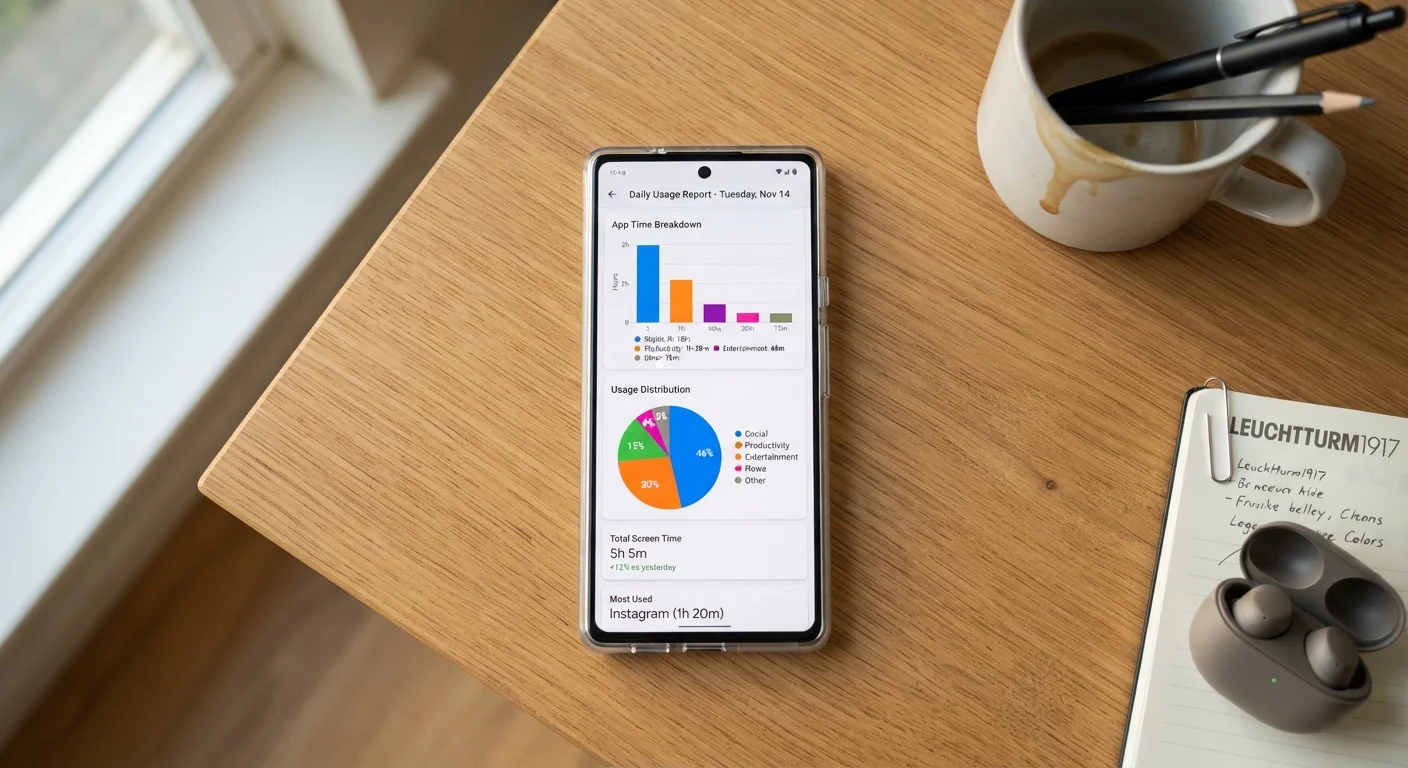
Screen time tracking refers to built-in phone features that measure how long you spend in each app, how often you pick up your device, and how many notifications you receive. Both iOS (Screen Time) and Android (Digital Wellbeing) include these tools at no extra cost. They present the data as charts and weekly summaries so you can see your usage patterns at a glance.
These features operate at the operating system level, which means they can log foreground app activity regardless of whether an app itself tracks time. Background processes running without an open screen are generally not counted.
What screen time tools actually measure
Every modern smartphone ships with a usage dashboard built in. iOS calls it Screen Time; Android calls it Digital Wellbeing. Both track roughly the same things: total time an app occupies the foreground screen, how many times you unlock your phone, and how many notifications arrive from each app.
The core metric is foreground time: how long an app's screen is visible and active. Open a social media app, scroll for ten minutes, then close it, and those ten minutes appear in your daily total. The system does not distinguish between passive scrolling and active reading. A video playing while you watch it counts the same as a video left running while you walk away.
Notification counts are logged separately. You can see which apps interrupt you most often, which is sometimes more informative than raw usage time. An app you open for two minutes a day might still send you thirty notifications.
Pickup count tracks how many times you wake the screen, regardless of what you do after. This number tends to surprise people, and it is often more telling than total hours.
What these tools leave out
The gaps matter as much as what gets counted.
Phone calls: Time spent in a call with the screen off does not count toward your app total. If you talk for an hour with the screen dark, that hour is invisible to the tracker.
Audio and podcasts: Streaming a podcast or playlist while your screen is off logs zero screen time, even though the app is actively running and holding your attention.
Background app activity: Apps refreshing data, syncing email, or running location services in the background are not counted. This matters for battery tracking (a separate system) but not for screen time.
Passive versus active use: The tracker cannot tell whether you were reading a long article or mindlessly refreshing a feed. Both appear identical in the log.
Cross-device activity: Screen time on a tablet or laptop is separate from your phone. iOS does allow Screen Time to aggregate across devices signed into the same Apple ID, but Android does not have an equivalent cross-device view built in.
Pair screen time with a broader digital audit
Screen time data tells you where your attention goes, but it does not show you which apps are still installed, which subscriptions are still active, or how much storage idle apps consume. A structured phone audit can fill those gaps and give you a clearer picture of your overall digital footprint.
For a fuller picture of how digital tools fit into your day, consider pairing screen time data with a broader audit of your apps and accounts. The digital clutter audit guide walks through exactly that process.
How to read your usage data without over-interpreting it
Screen time numbers are genuinely useful as pattern indicators. If your weekly report shows four hours a day on one app, that is worth knowing. But treating the number as a precise behavioral measure leads to false conclusions.
A few things worth keeping in mind when you look at your report:
- Compare your numbers week over week rather than holding them to an external standard. There is no universal healthy number.
- Look at which app categories dominate, not just totals. Entertainment apps and navigation apps both accumulate time, but the context is very different.
- Notification counts often explain pickup counts. Reducing notifications from high-volume apps tends to lower how often you reach for your phone.
App limits and scheduled downtime (called Downtime on iOS and Bedtime mode on some Android versions) are available if you want to set guardrails. Both work as soft prompts rather than hard locks in default configurations. The comparison of iOS and Android for everyday tasks covers how each platform handles these controls in practice.
Screen time settings sit alongside other device-level controls. If you are already familiar with your phone's privacy settings, the Screen Time or Digital Wellbeing section follows the same general layout and is worth a look on the same pass.
Where your usage data goes
Usage data collected by Screen Time and Digital Wellbeing stays on your device. App developers cannot access it; the operating system does not send it to third parties as part of normal operation. Apple and Google may use aggregated, anonymized data as part of broader analytics programs, governed by their respective privacy policies, but your individual app-by-app breakdown is not exposed to the apps themselves.
This matters because many apps have their own internal engagement analytics that are entirely separate from the phone-level tracker. An app might know how long you spent in a specific feature, but it cannot read your screen time report to see how you use competing apps.
Screen time tools are also distinct from parental control or device management systems. If a device is enrolled in a mobile device management profile (common in workplace or school settings), an administrator may have access to usage data through that profile, not through the built-in screen time feature itself.