

Key Takeaways
- Setting up an account (Google or Apple ID) is the first step to accessing apps, backups, and other phone features.
- Your phone's notification and permission settings control how much access apps have to your personal data.
- Apps come from official app stores, and you should only install from those sources.
- Wi-Fi uses your home internet connection; mobile data uses your cellular plan and counts against your data limit.
- A few basic security habits, like a screen lock and software updates, go a long way toward protecting your phone.
Start here
What you get when you first turn it on
Next
The settings worth knowing right away
Then
Finding and installing apps
When you're ready
Staying safe from day one
What you get when you first turn it on
A new smartphone walks you through a setup process the first time you power it on. This typically takes five to ten minutes and covers a few non-optional steps.
You will be asked to connect to a Wi-Fi network, set the phone's language, and create or sign in to an account. On an Android phone, that account is a Google account. On an iPhone, it is an Apple ID. Both are free to create using any email address. This account ties your phone to a backup system, so if your phone is ever lost or replaced, your contacts, photos, and apps can be restored.
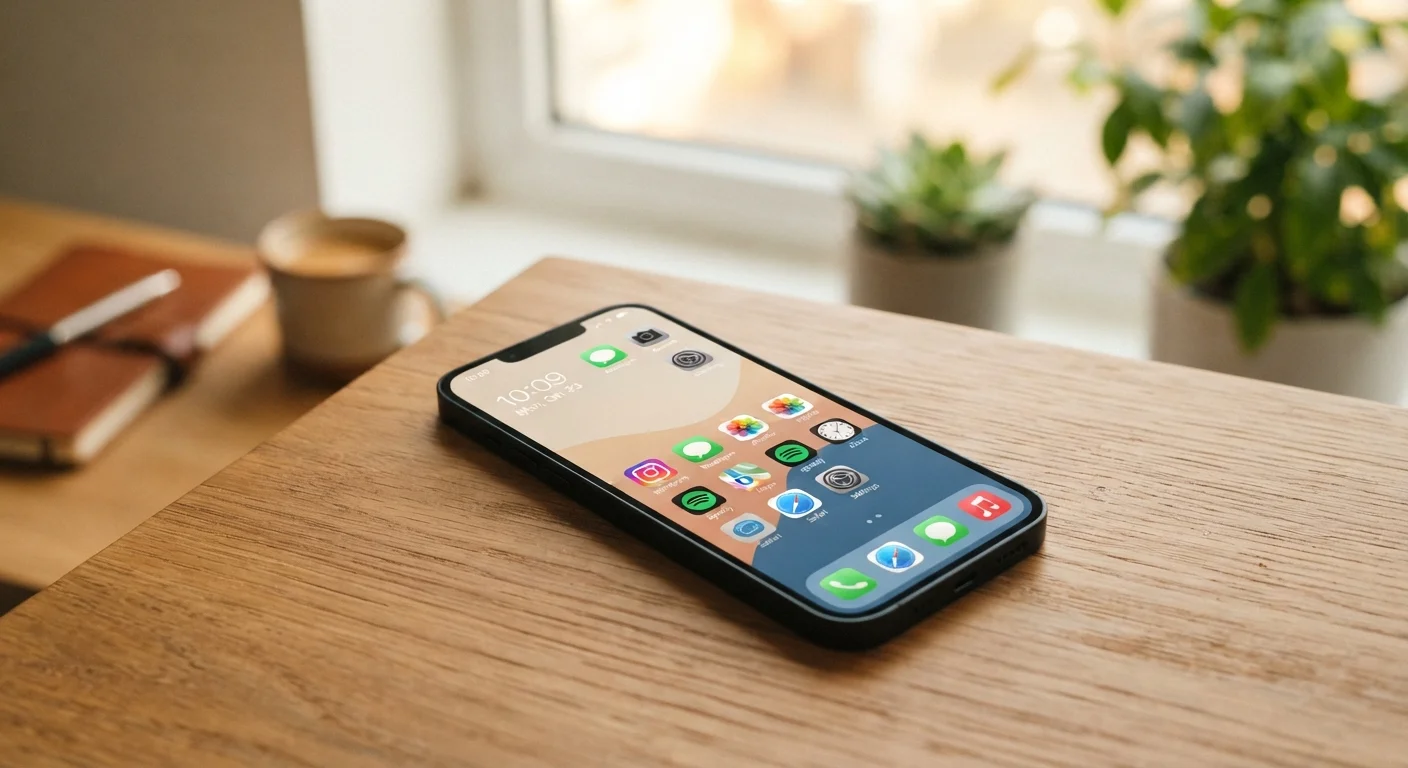
After that, the phone lands on a home screen: a grid of icons, each representing an app. Pre-installed apps cover the basics: phone calls, text messages, a camera, a web browser, and a maps tool. You do not need to install anything to get started.
Operating system
The core software that runs your phone. iPhones use iOS; most other smartphones use Android. Each has its own design and app store.
App
A program you install on your phone to do a specific task, such as checking email, getting directions, or watching video.
Permission
Access that an app requests to parts of your phone, such as your camera or location. You can approve or deny each one.
Mobile data
Internet access delivered through your cellular carrier's network. It works wherever you have a phone signal and counts against your monthly data limit.
Cloud backup
A copy of your phone's data stored on remote servers through your Google or Apple account. If your phone is lost or replaced, your data can be restored from the backup.
The settings worth knowing right away
The Settings app controls almost everything about how your phone behaves. A few areas are worth visiting early on.
Screen lock: Set a PIN, pattern, or fingerprint lock so that no one can access your phone if you set it down. This is in Settings under Security or Face ID and Passcode, depending on your phone.
Display brightness and text size: If the screen feels too dim or text is hard to read, both are adjustable in Settings under Display. Larger text is not just for older users; it reduces eye strain for everyone.
Notifications: Apps send notifications by default, which can get noisy fast. In Settings under Notifications, you can turn them off for any app that does not need to interrupt you.
Storage: Check how much space your phone has and how much is already used. Settings usually has a Storage or About Phone section that shows this. Knowing your capacity early helps you avoid running out later. For more on managing your phone over time, see our guide to smartphone maintenance.
Finding and installing apps
Apps are small programs you download to expand what your phone can do. The place to find them is the app store that came pre-installed: Google Play for Android devices, or the App Store for iPhones.
Open the store, type what you are looking for in the search bar, and tap the Install or Get button on the result you want. The app downloads and appears on your home screen automatically.
Before an app installs, it may list permissions: what parts of your phone it wants access to, such as your camera, microphone, or location. Read these. A navigation app needing your location makes sense. A recipe app asking for your contacts does not. You can review and adjust permissions any time in Settings under Apps or Privacy.
For a broader look at what your phone can do once you have a few apps installed, see our guide to smartphones as productivity tools. If you enjoy using apps for daily tasks, the Digital Tools hub covers apps and online services worth knowing about.
Start with fewer apps, not more
It is tempting to install a lot of apps right away. Starting with just what you need makes it easier to learn your phone without feeling overwhelmed. You can always add more once you are comfortable with the basics.
Connecting to Wi-Fi and mobile data
Your phone connects to the internet two ways. Wi-Fi uses a wireless router, such as the one in your home. Mobile data uses your cellular carrier's network and is available wherever you have a signal, but your plan likely limits how much you can use per month before speeds are reduced.
To connect to Wi-Fi, open Settings, tap Wi-Fi, and select your network from the list. You will need the network password, which is usually printed on your router. Once connected, your phone remembers that network and joins it automatically in the future.
When Wi-Fi is not available, your phone switches to mobile data on its own. You can see which connection is active by looking at the top of your screen: a Wi-Fi symbol means you are on Wi-Fi; signal bars without it mean you are using mobile data.
For help setting up Wi-Fi at home, our home networking guide explains routers, modems, and getting devices connected.
Staying safe from day one
A few habits protect your phone and the personal information on it.
Keep your phone's software updated. Updates patch security problems that could otherwise let malicious software in. You can turn on automatic updates in Settings so this happens without you having to remember.
Only download apps from official stores. Apps from other sources, sometimes called sideloading, skip the review process that catches harmful software.
Be careful with links in text messages or emails. If a message claims your account is at risk and urges you to tap a link immediately, treat it as suspicious. Go directly to the relevant website or app instead of following the link.
For a full walkthrough of the privacy controls already built into your phone, see our guide to smartphone privacy settings. Location sharing, app permissions, and data controls are all covered there.