

Key Takeaways
- A factory reset removes your photos, contacts, apps, and account sign-ins from the device.
- The operating system and any pre-installed firmware remain after the reset.
- Backing up your data before resetting is the only reliable way to keep it.
- A reset is a common step before selling, donating, or troubleshooting a phone.
- Encryption on modern phones makes wiped data very difficult to recover.
Factory reset
A factory reset erases all personal data, downloaded apps, and customized settings from a smartphone, returning it to the same software state it had when it was new. The phone's operating system stays intact, but everything you added after purchase is removed. It is also called a hard reset or master reset depending on the device.
On most modern Android and iOS devices, the reset process also triggers a cryptographic wipe, overwriting the encryption keys used to protect stored data so that recovery tools cannot reconstruct files.
What a factory reset actually does
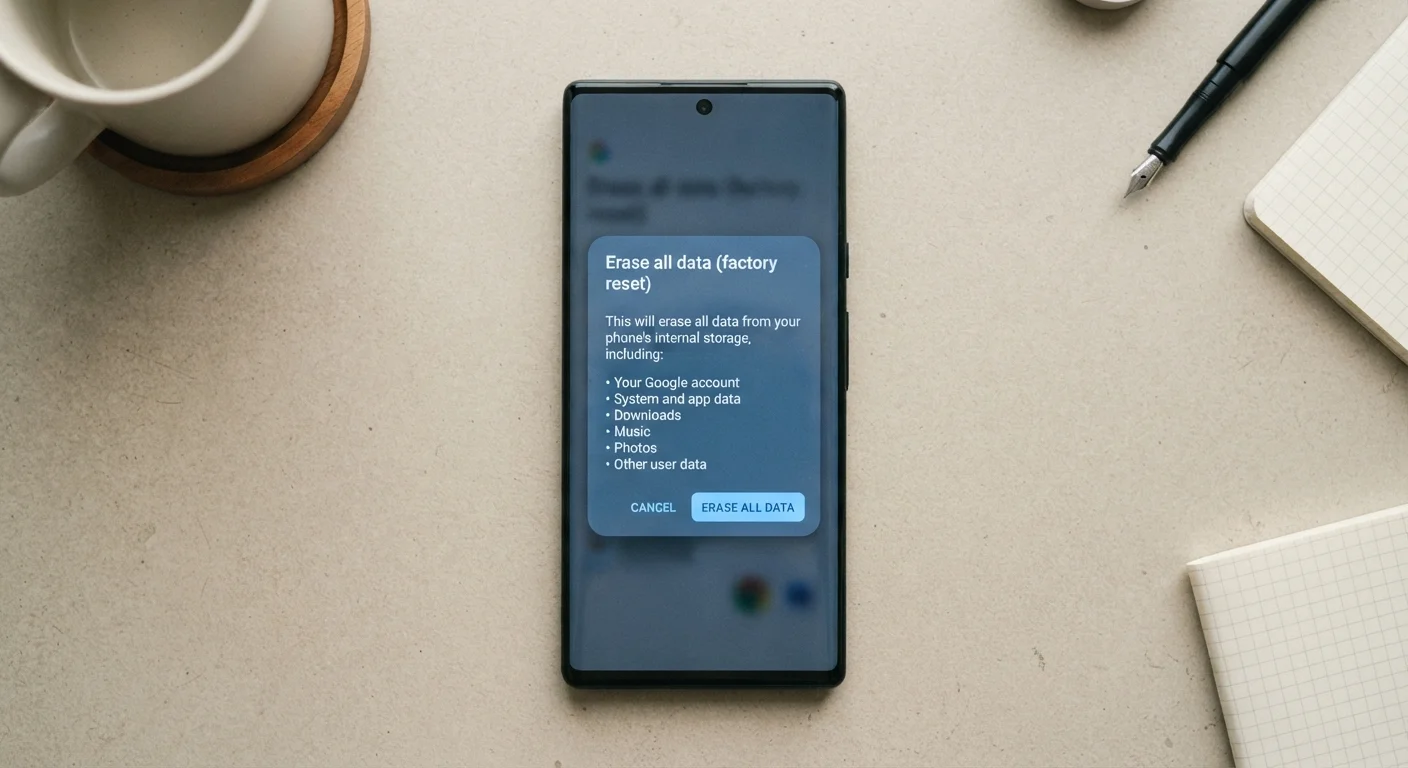
When you trigger a factory reset, the phone deletes your user partition, which is the section of internal storage that holds everything you have added since setup: photos, videos, messages, contacts, downloaded apps, Wi-Fi passwords, and account credentials. The operating system partition, which contains Android or iOS and any built-in apps, is left untouched.
On most current devices, the wipe also destroys the cryptographic keys that protected your data. Because the data was encrypted before it was deleted, losing the keys makes what remains unreadable even if fragments linger on the storage chip. This is why a reset on a modern phone is considered a thorough wipe rather than a simple deletion.
To understand why user data and system software live in separate areas, it helps to know how phone storage is structured. The guide to smartphone storage explains the difference between the partitions your apps use and the protected space reserved for the operating system.
What stays on the phone after a reset
The operating system version installed at the time of the reset remains. If the phone received an update before the reset, it keeps that updated version. Manufacturer customizations, such as a custom home screen launcher or pre-installed utility apps, also stay because they live in the protected system partition.
Carrier-installed apps that were baked into the firmware at manufacture are similarly untouched. Your SIM card is not affected at all, since the reset only addresses the phone's internal storage, not the card itself.
One item that catches people off guard is factory reset protection (FRP), a security feature on Android devices. After a reset, the phone may ask for the Google account credentials that were previously signed in. This is intentional: it deters theft by making a wiped phone unusable without the original account login. iOS has a similar mechanism tied to Apple ID. Signing out of those accounts before resetting avoids this friction.
Sign out before you reset
On Android, remove your Google account under Settings before initiating a reset. On iPhone, go to Settings, tap your name, and select Sign Out to disable Activation Lock. Skipping this step can leave the device locked to your credentials, which creates problems for whoever sets it up next.
When a factory reset makes sense
There are three common situations where a reset is the practical next step.
- Selling or giving away the device. A reset removes your personal data so the next owner cannot access your accounts or files. Signing out of cloud accounts and disabling FRP or Activation Lock before handing it over is part of that process.
- Persistent software problems. If a phone restarts randomly, apps crash repeatedly, or performance has degraded without an obvious cause, a reset eliminates software-side issues. Good smartphone maintenance habits can reduce how often you need to reach this point.
- A security concern. If you suspect malware or unauthorized access, a reset clears the device. Reviewing your phone's privacy settings after restoring from backup is a useful follow-up step.
Before you reset: what to back up
A backup should happen before the reset, not after. Once the wipe starts, data on the device is gone.
Photos and videos can sync automatically to Google Photos or iCloud if you have those services enabled. Contacts stored in a Google or Apple account sync to the cloud and will repopulate when you sign back in. App data is more variable: many apps store progress and preferences server-side, but some store data only locally, meaning a reset loses that data permanently.
Text messages require deliberate action. Neither Android nor iOS backs them up automatically to a standard cloud service by default; third-party apps or manual exports are needed if you want to keep them.
After restoring from backup on a new setup, the phone walks you through reconnecting accounts and reinstalling apps. If the phone is brand new to you rather than a reset of your own device, the beginner setup guide covers each step of that process.
~90%
Smartphones shipped with encryption enabled by default
According to Google's Android security reports and Apple's published platform security documentation, the vast majority of modern smartphones encrypt user data by default, making post-reset recovery extremely difficult.
2-10 min
Typical time to complete a factory reset
Most Android and iOS devices complete the core wipe phase within this window, after which the setup wizard begins.