

Key Takeaways
- Dead zones form when walls, floors, or distance absorb or block wireless signals before they reach a device.
- Router placement has a bigger effect on coverage than most people expect.
- Changing your Wi-Fi channel or frequency band can reduce interference without buying anything new.
- Mesh systems, range extenders, and powerline adapters each work best in different home layouts.
- A wired Ethernet backhaul improves the reliability of any extended network.
What you will need
Why dead zones form
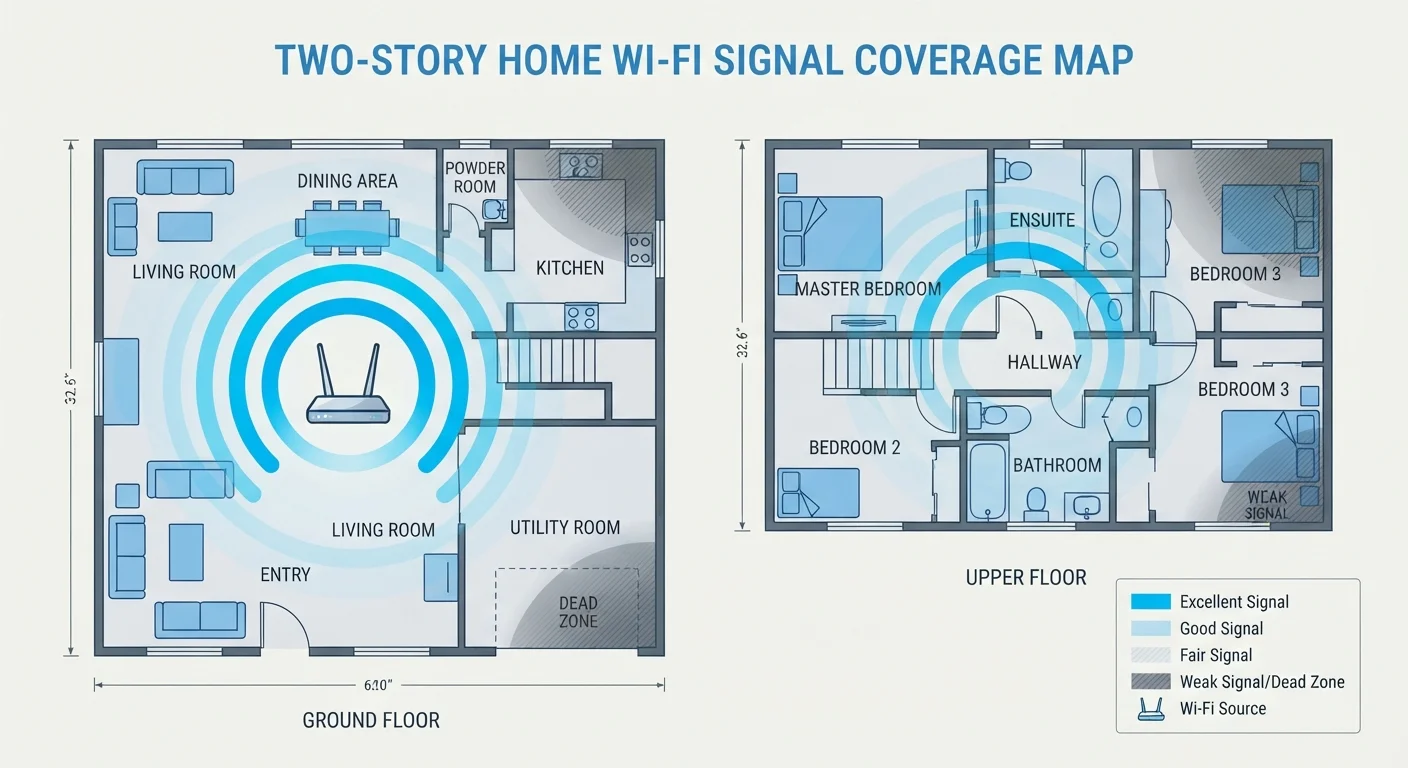
A dead zone is any area in your home where the Wi-Fi signal is too weak for a reliable connection. Signals travel as radio waves, and those waves weaken with distance and lose energy when they pass through physical obstacles.
Construction materials vary widely in how much signal they absorb. Drywall has minimal effect, but brick, concrete, and plaster walls cut signal strength noticeably. Metal studs, pipes, foil-backed insulation, and large appliances (especially microwave ovens) can block or reflect signals entirely. Multi-story homes are particularly prone to dead zones because floors contain structural materials, plumbing, and ductwork that all interfere with vertical signal travel.
Distance alone causes problems even without obstacles. Most home routers broadcast a usable signal for roughly 100 to 150 feet in open air. Walls and floors effectively shrink that radius, sometimes to under 30 feet.
Interference from neighboring networks adds another layer. In dense apartment buildings or close suburban neighborhoods, dozens of routers may compete on the same radio channels. This congestion does not create dead zones the way walls do, but it slows throughput and increases dropped connections in ways that feel similar to users.
Router placement amplifies all of these factors. A router tucked in a corner, locked in a cabinet, or placed on the floor near a wall produces a coverage footprint that is lopsided from the start. Because signals radiate outward in all directions, a router placed at one end of a home dedicates roughly half its broadcast range to the wall behind it.
How to map and fix your dead zones
Wi-Fi analyzer app
Maps signal strength room by room so you can locate dead zones and identify channel congestion.
Mesh Wi-Fi system
Replaces or supplements a single router with multiple nodes that share one network name across a wider area.
Range extender (Wi-Fi repeater)
Rebroadcasts an existing Wi-Fi signal to push coverage further into weak areas.
Powerline adapter kit
Carries network data through your home's electrical wiring, useful when running Ethernet cable is impractical.
Ethernet cable (Cat 5e or Cat 6)
Provides a wired backhaul connection between router and extender or mesh node for stronger, more stable performance.
Follow the steps below to find weak spots and choose the right fix for your layout.
Walk your home with a Wi-Fi analyzer app
Download a free Wi-Fi analyzer app on your phone or laptop. Walk through every room, including hallways, closets, and stairwells, and note the signal strength reading in each area. Most apps display signal in dBm (decibel-milliwatts); anything weaker than -70 dBm will produce unreliable performance. Mark the weak spots on a rough floor plan sketch so you can see the pattern.
Check your router's current position and move it if needed
Identify where your router sits now and how that compares to the center of your home's footprint. Move it to a more central, elevated location if possible. Avoid placing it on the floor, inside furniture, or in a room that is already at the edge of your living space. Re-run the analyzer app after moving the router to see whether the weak zones shift or shrink.
Switch to a less congested Wi-Fi channel
Log into your router's admin interface and check which channel your 2.4 GHz network is using. The Wi-Fi analyzer app will also show which channels nearby networks occupy. For 2.4 GHz, channels 1, 6, and 11 do not overlap with each other; choose whichever of the three has the least competition from neighboring networks. For 5 GHz networks, there are more non-overlapping channel options, and congestion is typically less of an issue.
Add a range extender, mesh node, or powerline adapter
If repositioning the router and changing the channel do not fully resolve your dead zones, choose an extension method based on your layout (see the section below for guidance). Place a range extender or mesh satellite node at the midpoint between your router and the dead zone, not inside the dead zone itself. The device needs a strong incoming signal to rebroadcast effectively. Connect it via Ethernet backhaul if your home layout allows it.
Verify coverage and test connection quality
After making changes, walk your home again with the analyzer app and run a speed test from each area that was previously weak. A speed test confirms not just signal strength but actual usable throughput. If a previously dead zone now shows signal but delivers very slow speeds, the extender or node placement may need adjustment, or the backhaul connection may be limiting performance. Compare your results to what your internet plan provides; your connection type affects the ceiling on what any Wi-Fi setup can deliver. Understanding the differences between fiber, cable, DSL, and fixed wireless can help you assess whether your plan itself is a limiting factor.
For larger homes or anyone working from home on video calls, coverage gaps carry real productivity costs. See what factors matter most for a stable remote work setup if dropped calls are your main concern.
Choosing the right coverage solution
Once you know where your dead zones are, the fix depends on your home's size, construction, and budget.
Moving your router is free and often solves the problem in smaller homes. A central, elevated location (a shelf in a hallway or main living area) gives the signal the best chance of reaching every room. Removing the router from inside a cabinet or entertainment center helps too.
A range extender connects to your existing router over Wi-Fi and rebroadcasts the signal. Setup is straightforward, but the extender creates a separate network name that devices must connect to manually, and each hop through the extender cuts available bandwidth roughly in half. Extenders work well in single-story homes with one problem area.
A mesh system uses two or more nodes that share the same network name and hand off devices automatically as you move around. Most mesh systems use a dedicated wireless channel or a wired Ethernet connection between nodes as a backhaul, which avoids the bandwidth penalty that extenders face. How mesh and extended router setups differ in practice covers the tradeoffs in more detail.
Powerline adapters are worth considering in homes where running Ethernet cable is impractical but Wi-Fi signals cannot penetrate the walls between floors. They use your home's electrical wiring to carry network data, then connect a secondary access point at the far end. Performance varies depending on the age and wiring quality of your home.
For devices that stay in one place, a wired Ethernet connection sidesteps coverage issues entirely. When an Ethernet cable still makes sense explains where that trade-off is worth making.