

Key Takeaways
- Most apps request notification permission by default, but you can revoke access at any time through your phone's settings.
- Grouping alerts by priority, rather than treating all equally, reduces interruptions without missing what matters.
- Scheduled delivery and Do Not Disturb modes let you batch notifications instead of reacting to each one as it arrives.
- Auditing your notification list every few months prevents gradual alert creep from building back up.
- Turning off lock-screen previews protects personal information in public without silencing alerts entirely.
Why notification overload happens
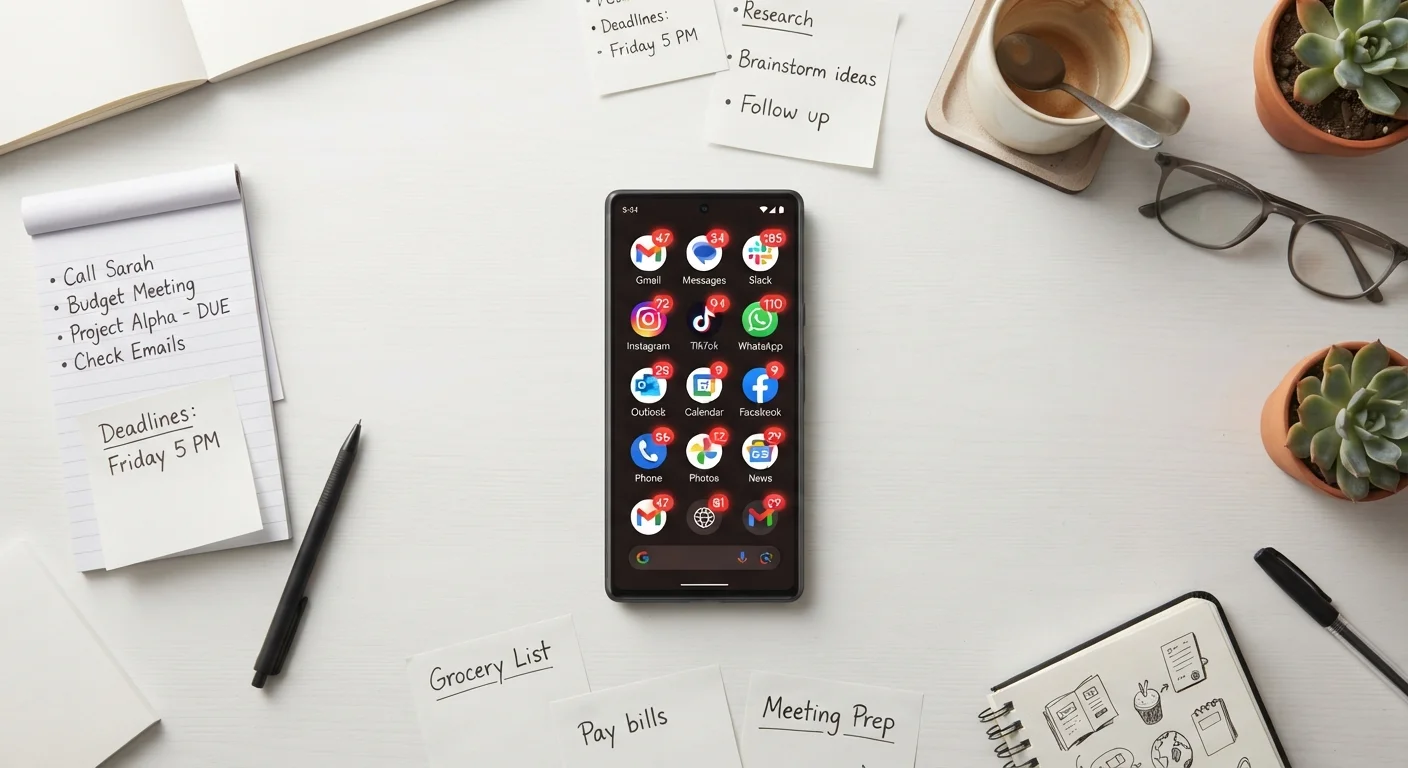
Every app you install sees a notification permission request as a way to stay relevant. Accept that prompt once, and the app treats it as a permanent invitation to interrupt you. Over months of installing apps, those individual permissions stack into a constant stream of pings, banners, and badge counts that compete for your attention all day.
The problem compounds because most notifications are not time-sensitive. A social media like, a promotional email, a weather update for a city you are not in: none of these require an immediate response, yet your phone treats them the same as a text from a family member. That flattening of priority is what makes the experience feel chaotic.
If notification fatigue is affecting more than just your phone habits, it can also surface as a stress trigger. The connection between digital overload and stress is worth understanding alongside the practical fixes below.
Auditing what you actually allow
Before adjusting anything, get a clear picture of which apps have notification access. On an iPhone, go to Settings, then Notifications, and scroll through the list. On Android, go to Settings, then Apps, then choose an app and look for its Notifications option. Most people find dozens of apps with full permission that they never consciously enabled.
As you scroll, ask one question for each app: does this app ever send me something I need to act on within the day? If the answer is no, turn off notifications for it entirely. Common candidates for full removal include shopping apps, games, news aggregators, and apps you use less than once a week.
For apps that do need to reach you, check whether they offer notification categories. Many apps separate alerts into types, such as direct messages versus promotional content, so you can keep one type and silence another without losing access to the useful ones.
This audit pairs well with a broader phone cleanup. The digital clutter audit guide covers how to clear out apps, files, and subscriptions that accumulate quietly over time.
Building a priority tier for your alerts
Once you have trimmed the list, organize what remains into two tiers: interruptions and check-ins.
Interruptions are alerts that warrant immediate attention: calls, messages from people you talk to regularly, calendar reminders for events happening soon, and security alerts such as two-factor authentication codes. These should remain on, with sound or vibration, and should appear on your lock screen.
Check-ins are everything else you still want but do not need immediately: app activity summaries, email counts, weather, and similar updates. For these, turn off sound, turn off banners that interrupt your screen, and let them accumulate silently as badge counts or in a notification shade you open on your schedule. Both iOS and Android support these granular controls at the per-app level.
How each platform handles these settings differs in meaningful ways. The comparison of Android and iOS daily usability can help you find the right settings path for your device.
Using scheduled delivery and Do Not Disturb effectively
Scheduled Summary on iOS batches low-priority notifications and delivers them at times you choose, such as morning and evening, rather than throughout the day. Android's scheduled Do Not Disturb lets you define hours when all but your priority contacts are silenced automatically. Both tools move you from a reactive posture to one where you check notifications when you choose to.
Set your quiet hours to match the periods when interruptions cost you the most: focused work blocks, meals, and sleep. Allow calls from a small list of contacts to break through during those windows so genuine emergencies can still reach you.
If you use alarm apps or financial apps that send payment reminders, verify that those stay active during quiet hours. Managing which alerts bypass your quiet settings requires checking the exceptions list within Do Not Disturb, not just the app's own settings.
For people who use automated tools to reduce decision load elsewhere, including automatic bill payments and scheduled transfers, keeping financial alert notifications active in the priority tier ensures you still catch anything that needs human review.
Keeping control over time
Notification settings drift. When you install a new app, it asks for permission and you may approve without thinking. After a software update, some apps reset their notification preferences. A quarterly review, set as a recurring calendar reminder, takes about ten minutes and prevents the pile-up from returning.
One additional setting worth enabling is hiding message previews on the lock screen. Both iOS and Android can show a notification banner without revealing the message content until you unlock the device. You get the signal that a message arrived without exposing the text to anyone nearby.
The goal is a phone that tells you what you need, when you need it, and stays quiet the rest of the time. That outcome comes from deliberate choices in settings, not from any single app or service.