

Key Takeaways
- Folders store one copy of a message in one location; labels attach multiple tags to a single message.
- Gmail uses labels exclusively, while Outlook and most traditional email services use folders.
- Neither system is universally better; the right choice depends on how your specific email service works.
- You can combine folders and labels in services that support both, such as Apple Mail with IMAP accounts.
- A consistent naming convention matters more than which system you choose.
Option A
Email Folders
The traditional, file-cabinet approach to organizing messages.
Best for: Users who want a clear, hierarchical structure where each email lives in one defined place.
Option B
Email Labels
The flexible, tag-based system that lets one email belong to multiple categories.
Best for: Users who deal with messages that span multiple topics and want to find them from several angles.
If you use Outlook, Yahoo Mail, or another traditional email client
Email Folders
These services are built around folders, so working with the native system is more reliable and consistent than trying to approximate labels.
If you use Gmail as your primary email service
Email Labels
Gmail does not have traditional folders; labels are the system, and learning to use nested labels and filters unlocks most of Gmail's organizational power.
If your emails frequently relate to multiple projects or people at once
Email Labels
Applying two or three labels to one message means you can locate it from any of those angles without duplicating it.
If you prefer a simple, visual structure you can scan quickly
Email Folders
A folder list in a sidebar gives an at-a-glance view of categories without needing to read color-coded tags.
What folders actually do
An email folder works much like a physical folder in a filing cabinet. When you move a message into a folder, it leaves your inbox and lives in that one location. You can create as many folders as you want, nest them inside each other (for example, a "Clients" folder containing sub-folders for each client), and drag messages between them.
Most email services have used this model for decades. Outlook, Yahoo Mail, iCloud Mail, and standard IMAP accounts (the protocol most non-Google email uses) all treat folders as the primary organizing unit. The tradeoff is straightforward: a message can only be in one folder at a time. If a client email also relates to a specific project, you have to choose where it goes, or make a copy.
That single-location rule is what defines folders. It keeps structure simple and predictable, but it forces decisions when a message genuinely belongs to two categories.
What labels actually do
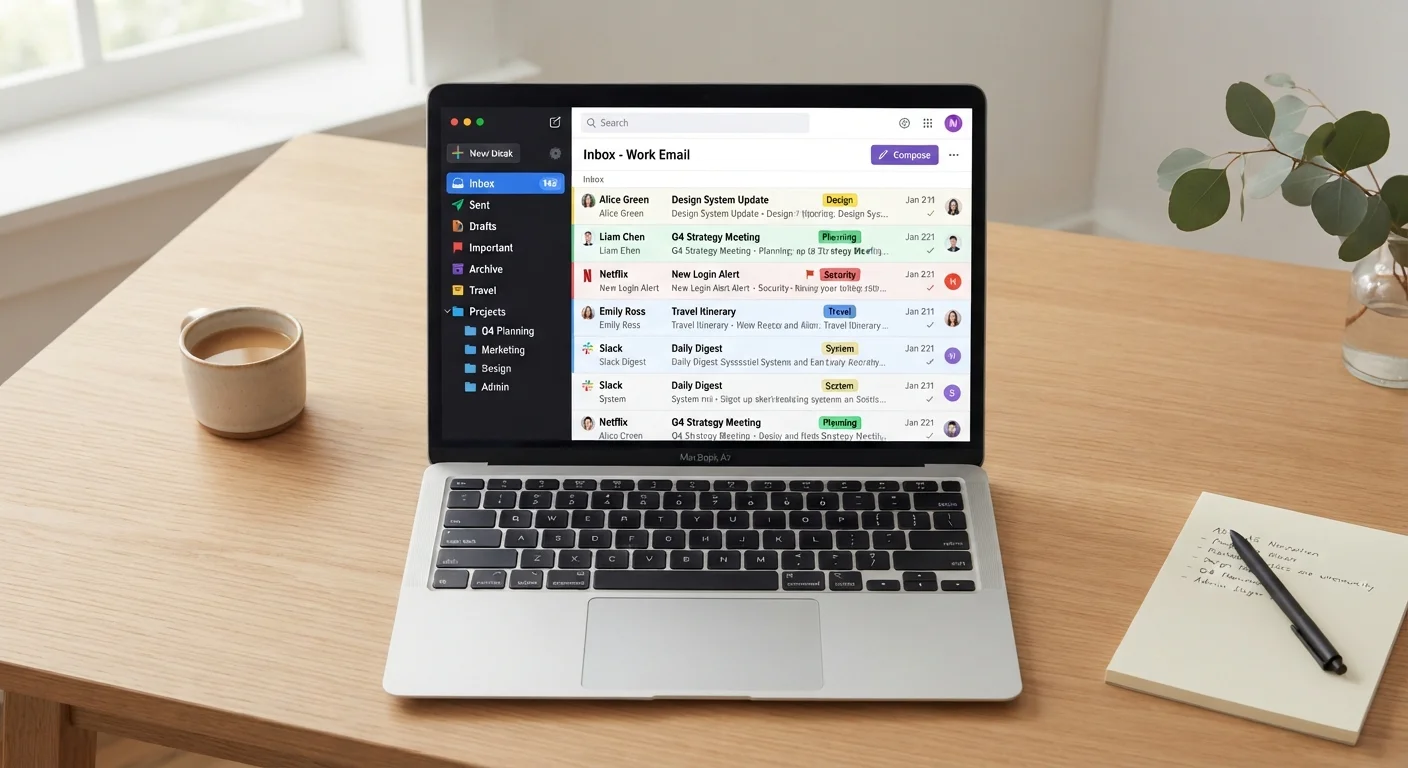
A label is a tag applied to a message rather than a location the message moves to. The message stays in your inbox (or wherever it is) and the label appears as a colored badge next to the subject line. You can apply as many labels as you want to one message.
Gmail is the most widely used label-based email system. In Gmail, what look like folders in the left sidebar (including Inbox, Sent, and any custom categories you create) are technically labels. When you "move" a message in Gmail, you are removing the Inbox label and applying a different one. The message itself does not change location on Google's servers.
| Criterion | Folders | Labels |
|---|---|---|
| Message location | One folder only | Stays in inbox, tagged in place |
| Multiple categories per message | No (copy required) | Yes, unlimited labels |
| Primary services | Outlook, Yahoo, iCloud, IMAP | Gmail |
| Visual display | Sidebar list | Colored badges on messages |
| Works with filters/rules | Yes | Yes |
| Nesting sub-categories | Yes, sub-folders | Yes, nested labels (Gmail) |
| Learning curve | Low, familiar concept | Moderate, non-intuitive at first |
Because one message can carry multiple labels, you can tag a single email as both "Finance" and "Q3 Project" and find it by searching or clicking either label. This removes the either-or filing decision that folders require. The cost is a slightly steeper learning curve: new users sometimes find it confusing that a message can appear in multiple places simultaneously.
Where the two systems overlap
Some email clients let you use both. Apple Mail, when connected to an IMAP account, displays server-side folders in its sidebar. If you connect that same account to Gmail, those folders appear as labels in the Gmail interface. The underlying data is the same; the two apps just present it differently.
This overlap is worth knowing because it affects what happens when you organize on one device and then check your email on another. A folder you create in Apple Mail will show up as a label in Gmail's web interface, and vice versa. If you switch between apps regularly, testing your setup across both views prevents surprises.
Filters (rules that automatically sort incoming mail) work with both systems. You can set a filter to apply a label or route a message to a folder the moment it arrives, which is where most of the time savings in email organization actually come from. For a broader look at reducing digital accumulation, see our practical inbox audit guide.
Choosing a system that holds up over time
The choice between folders and labels is largely determined by which email service you use, not by personal preference. If your service uses folders, use folders well. If it uses labels, learn the label system rather than working against it.
Whichever system applies to you, consistency matters more than complexity. A scheme with five clearly named categories you actually use will hold up better than twenty folders or labels you abandon after a month. Before creating a new folder or label, ask whether you will realistically search by that category in the future.
Automated filters do the heavy lifting. Setting rules so that newsletters, receipts, or notifications are tagged or filed on arrival keeps your main inbox reserved for messages that need a response. This approach takes about ten minutes to configure and removes most day-to-day sorting work. If you find that organizing email and other tasks still feels scattered, the same discipline applies across your schedule; comparing time blocking with to-do lists can help clarify which structure fits how you actually work.