

Key Takeaways
- A digital wallet stores payment card details on your phone and lets you pay without swiping a physical card.
- Digital wallets use tokenization so merchants never see your real card number.
- Setup takes only a few minutes and requires your phone, an app, and a card to add.
- You can use a digital wallet in stores, apps, and on websites that accept contactless or mobile payments.
- Losing your phone does not automatically expose your card details because access requires your PIN, fingerprint, or face scan.
Start here
What a digital wallet actually is
Next
How digital wallets keep your payment info safe
Then
Setting up your first digital wallet
In practice
Using a digital wallet day to day
When you're ready
Common concerns and what to do about them
What a digital wallet actually is
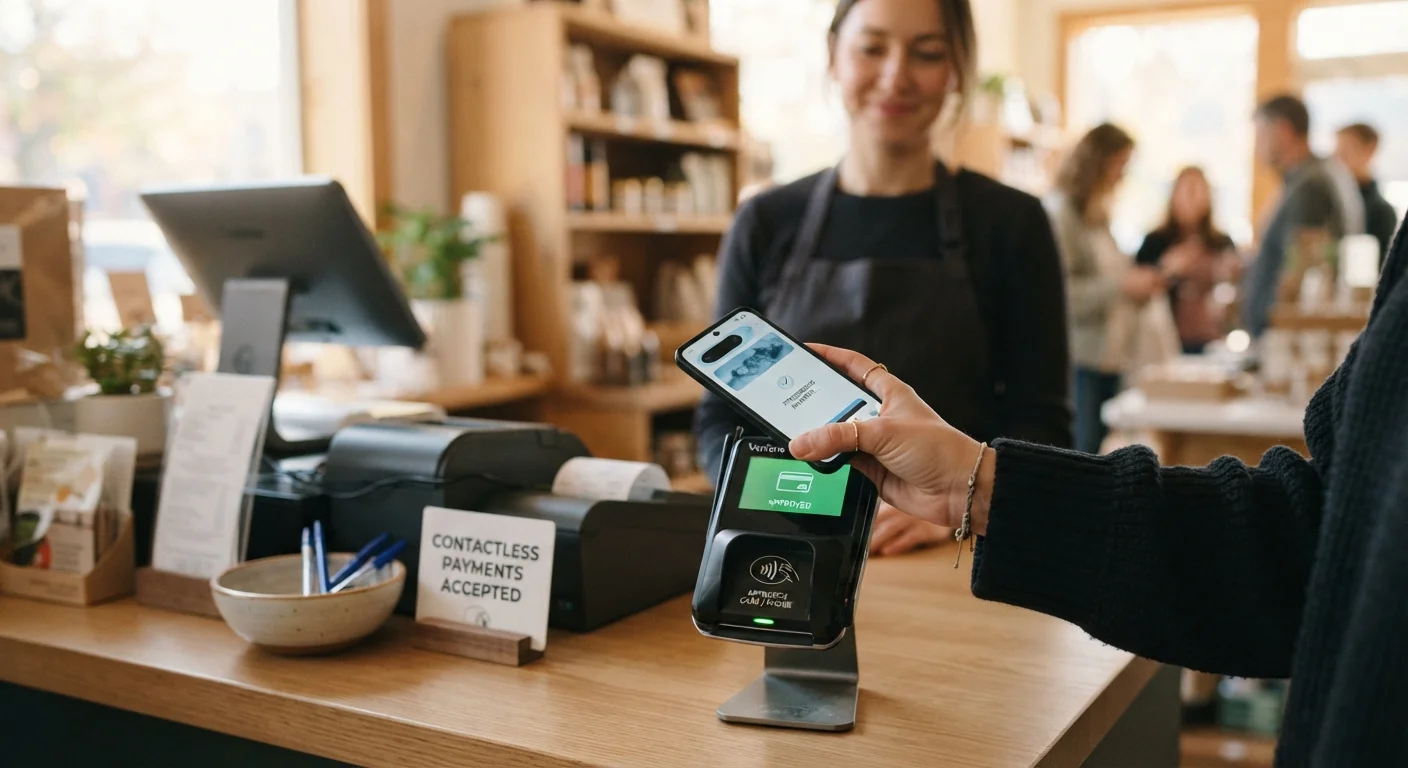
A digital wallet is an app on your smartphone that holds your payment card details so you can pay without pulling out the physical card. Think of it as a secure copy of your wallet that lives on your phone. When you check out at a store, you hold your phone near the payment terminal and the transaction goes through in about the same time as a tap with a physical card.
Digital wallets also work for online shopping and in-app purchases. Instead of typing your card number every time, you authorize the payment through the wallet with your fingerprint, face scan, or PIN.
Digital wallet
An app on your phone that stores payment card details and lets you pay without using the physical card.
Tokenization
A security process that replaces your real card number with a unique code for each transaction, so merchants never see the actual number.
Contactless payment
A payment method where you tap or hold your phone (or a card) near a reader instead of swiping or inserting it.
Biometric authentication
Using a physical characteristic, like your fingerprint or face, to confirm your identity before the wallet allows a payment.
NFC (Near Field Communication)
The short-range wireless technology that lets your phone communicate with a payment terminal when held close to it.
If you are already comfortable with the basics of using a smartphone, adding a digital wallet is a natural next step. For those still finding their footing with a new device, the no-jargon smartphone guide is a good place to start first.
How digital wallets keep your payment info safe
When you add a card to a digital wallet, the app does not simply store your card number. It creates a token: a unique string of characters that stands in for your real number. The token is what gets sent during a transaction, so the store's payment system never receives your actual card details.
Each token is typically tied to one specific device and one specific transaction, which makes intercepted data useless to anyone trying to copy it. Your card issuer and the wallet provider verify the transaction behind the scenes in a fraction of a second.
Access to the wallet itself is protected by whatever unlock method you use on your phone, whether that is a fingerprint, a face scan, or a numeric PIN. Without that authentication, the wallet will not open and no payment can go through.
Setting up your first digital wallet
Both major mobile platforms include a built-in wallet app. Android devices use Google Wallet, and iPhones use Apple Wallet with Apple Pay. You can also download third-party wallet apps from your phone's app store if your bank or card issuer has its own.
The setup process follows these steps for most wallet apps:
- Open the wallet app on your phone.
- Select the option to add a payment card.
- Point your phone's camera at the physical card so the app can read the number, or type the details manually.
- Your card issuer sends a verification code by text or email. Enter it to confirm ownership.
- Accept the terms and the card appears in your wallet, ready to use.
Add your most-used card first
Start with one card you already use regularly, such as a debit card or a card you know the number for. Getting comfortable with a single card before adding others makes the process easier to follow. Most wallet apps let you set a default card so that one is selected automatically at checkout.
If you use a password manager, keeping your login credentials for the wallet app stored securely there makes recovery easier if you switch phones. The guide to setting up a password manager walks through the process from scratch.
Using a digital wallet day to day
At a store, look for the contactless payment symbol on the checkout terminal. It resembles sideways Wi-Fi bars. When you see it, wake your phone (some devices let you double-click the side button to bring up the wallet directly), authenticate with your fingerprint or face, and hold the back of the phone near the terminal. A checkmark or confirmation sound tells you the payment went through.
For online purchases, select the wallet option at checkout instead of entering card details. The site redirects you to authenticate through your phone, and the payment completes without you ever typing a card number into the browser.
Digital wallets work alongside the tools covered in our overview of digital finance tools, since you can track spending, review statements, and manage accounts all from the same device.
Common concerns and what to do about them
Many people worry that a lost or stolen phone means their money is at risk. In practice, the wallet requires authentication to open, so someone who finds your phone cannot simply wave it at a terminal and make purchases. Remotely locking the device through your phone platform's security settings disables the wallet immediately.
Another common question is whether the phone's battery affects access. If your phone dies at checkout, you will not be able to use the digital wallet, so keeping your phone charged or carrying a backup card is reasonable precaution.
Some users also wonder whether their card benefits, such as cash back or purchase protection, still apply when paying through a wallet. Those terms are set by your card issuer and generally carry over because the underlying card is the same. Confirming with your issuer directly is the most reliable way to check.
For a broader look at managing money day to day, the everyday money tips hub covers practical habits that pair well with digital payment tools.