

Key Takeaways
- Autofill pulls from saved data that can become outdated after a move, name change, or new card.
- Browsers and phones store autofill data separately, so updating one does not update the other.
- Filling a form incorrectly and saving it can corrupt your autofill data going forward.
- Reviewing your stored autofill entries every few months prevents repeated errors.
- A password manager handles login credentials more reliably than browser autofill alone.
How autofill actually works
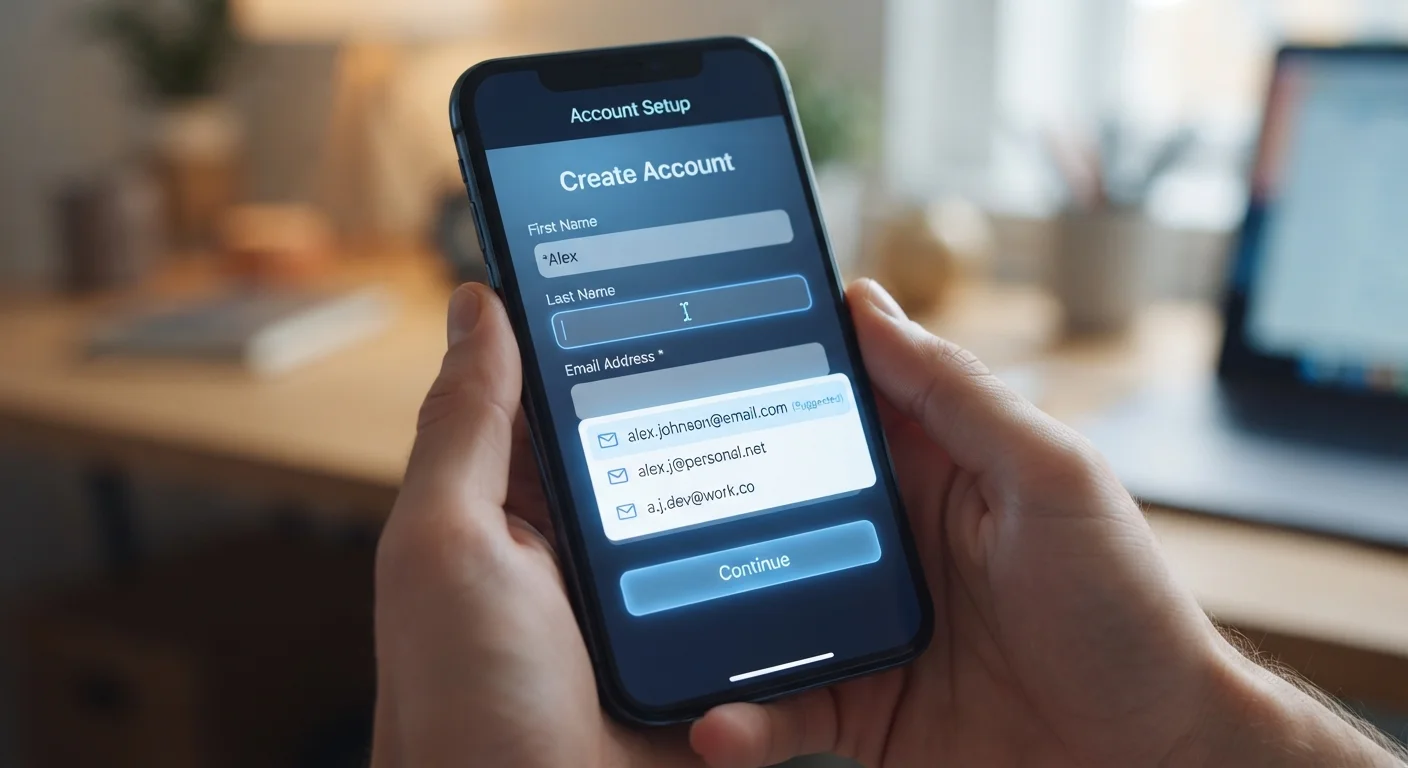
Autofill is a feature built into browsers (such as Chrome, Firefox, or Safari) and mobile operating systems that stores information you have typed into forms and replays it the next time a similar field appears. When you type your name into a shipping form, the browser can save that entry and suggest it automatically the next time it sees a "name" field.
The system relies on pattern matching. Browsers look at a field's label, its HTML attributes, or its position on a form to decide which stored value fits. When form developers follow standard conventions, autofill works smoothly. When they use unusual field names or unconventional layouts, autofill guesses, and guesses can be wrong.
Your browser and your phone's built-in keyboard or autofill system (such as iCloud Keychain on Apple devices or Google Autofill on Android) maintain separate databases. A change made in one place does not carry over to the other, which is a common source of confusion. If you want consistent data everywhere, you need to update each location individually, or use a dedicated tool. See how a password manager centralizes this for one approach.
Common autofill mistakes and how to avoid them
Accepting an autofill suggestion without reading it first.
Why it happens: Autofill suggestions appear quickly and tapping them feels faster than reading. Most of the time the suggestion is correct, so users build a habit of accepting without checking.
Saving an incorrectly filled form, which writes bad data into autofill storage.
Why it happens: Browsers prompt you to save new or changed form data after submission. If you corrected a field manually mid-form but the browser captured an earlier, wrong value, saving will preserve the error.
Assuming that updating autofill in one place updates it everywhere.
Why it happens: Browsers and operating systems each maintain their own autofill databases, and the distinction is not visible during normal use. Users reasonably expect a single source of truth.
Storing payment card details in browser autofill without reviewing them after a card change.
Why it happens: Card numbers get updated after renewals or replacements, but autofill does not know the card changed. The old number stays in storage and gets suggested at checkout.
Using browser autofill for passwords instead of a dedicated credential manager.
Why it happens: Browser autofill handles both addresses and passwords in the same interface, so many users rely on it for everything without realizing the limitations. Browser-stored passwords do not sync reliably across different browsers or devices.
If autofill is placing incorrect data into checkout or account forms, it is worth checking whether your browser is also saving login credentials inconsistently. The choice between a browser and an app also affects which autofill system activates, since apps often use the operating system's autofill rather than the browser's.
Keeping your autofill data clean
Set a reminder every three to four months to open your browser's autofill or form settings and scan what is stored. In most browsers, you can find this under Settings, then a section labeled "Autofill" or "Addresses and more." Delete any entry that is outdated, and edit entries that are partially correct rather than leaving them in place.
After any life change (a move, a new card number, a name change), update autofill immediately rather than waiting until a form goes wrong. Autofill errors on checkout forms can cause failed deliveries or declined payments, so the cost of a stale entry is immediate and concrete.
If your autofill data is accurate in the browser but wrong in apps, check your device's system-level autofill settings. On an iPhone or iPad, go to Settings, then your Apple ID, then iCloud, and look for Passwords or Keychain. On Android, search for "Autofill service" in Settings. Each location has its own set of stored entries to manage.
~25%
Online purchases with a checkout error
A 2023 Baymard Institute study found roughly one in four attempted online purchases ends before completion, with form errors and autofill issues among the cited friction points.
3-4x
More autofill sources on a typical device
A single user commonly has autofill data stored across a browser, a secondary browser, and the device's operating system, meaning the same field can draw from multiple separate databases.